Managing Your Pipeline Campaign
Last updated: April 23, 2025
Take full control of your campaign once it’s live. Here’s how to manage it all from one place:
🧭 Navigate to Your Campaign
Once you click into your campaign, you’ll land on the Campaign Dashboard.
This gives you a high-level view of how your campaign is performing.
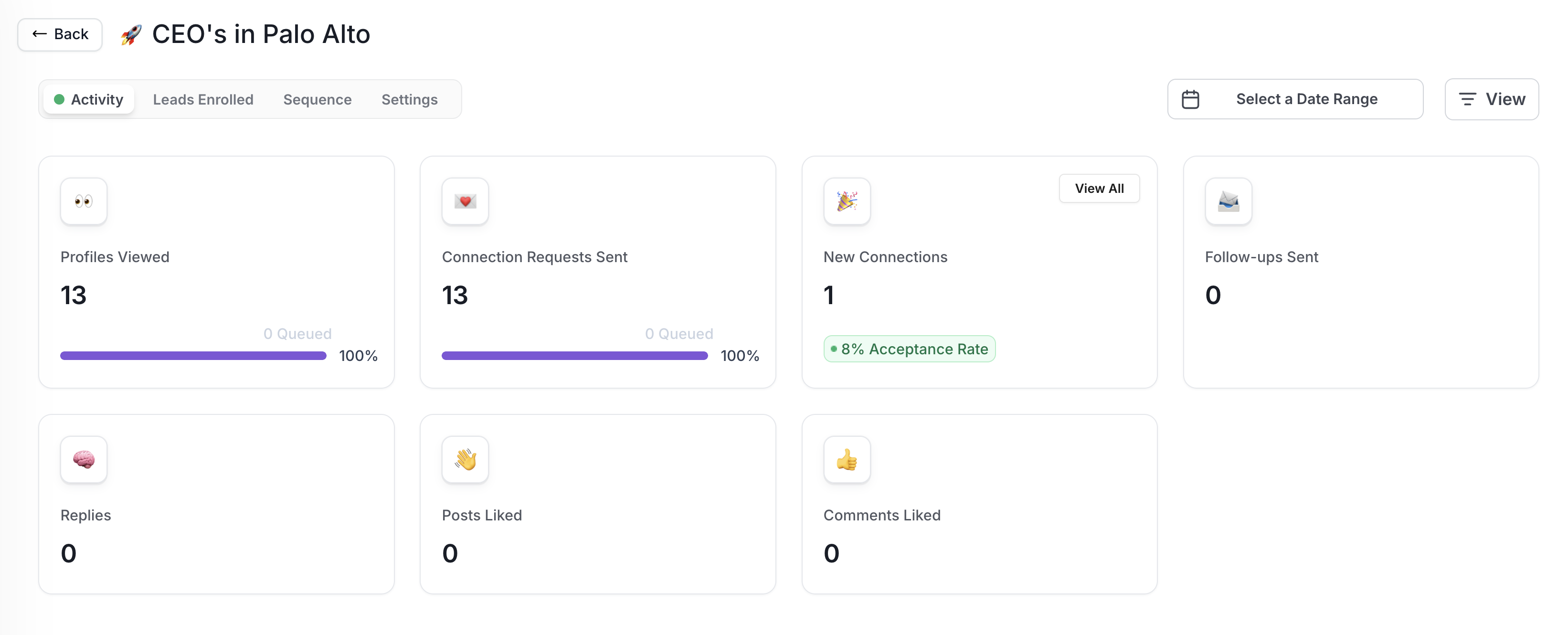
Here’s what you’ll see:
Profiles Viewed: How many profiles have been viewed by your LinkedIn.
Connection Requests Sent: Outbound invites Pipeline has sent.
New Connections: How many people accepted your invite + your acceptance rate for this campaign.
Follow-ups Sent: How many follow-up messages have been sent.
Replies, Posts Liked, Comments Liked: Activity from your campaign
Use the "Select a Date Range" filter to focus on a specific time period.
Switch your analytics view between All Time and the past 24 hours.
✅ View All Accepted Connections from Campaign
Click "View All" under New Connections to see a detailed list of leads who accepted specifically from this campaign.
👥 Add Leads
Click the Leads Enrolled tab
Use the Add Leads button to bring in new prospects
Manually Add LinkedIn URLs to enroll directly into the campaign
Enrich or Select more leads from your lead list to add
Remove leads by selecting the checkbox and clicking Remove
🚮 Remove Leads
Remove leads by selecting the checkbox
Click Remove Leads
Approve the removal
✍ Edit Your Sequence
Go to the Sequence tab
Update your outreach steps, messages, and timing
Preview the full flow before saving changes
Click Save Changes
Any updates made to your sequence will only apply to leads moving forward that the system hasn't taken action on yet. These changes won’t retroactively affect leads already in the sequence.
⏰ Adjust Your Sending Schedule
Click the Settings tab
Update your start/stop times, and daily sending schedule
Make sure your schedule aligns with your outreach strategy
Click Save Changes