How to Export Your Accepted Connections
Last updated: September 16, 2025
See a complete view of all your accepted LinkedIn connections in Pipeline. Your export includes all available enriched data on each lead, and you can customize exactly what you want to download — from date ranges to tags, and even email or phone enrichment.
How to Export Your Accepted Connections
Navigate to your
Connections Tabin Pipeline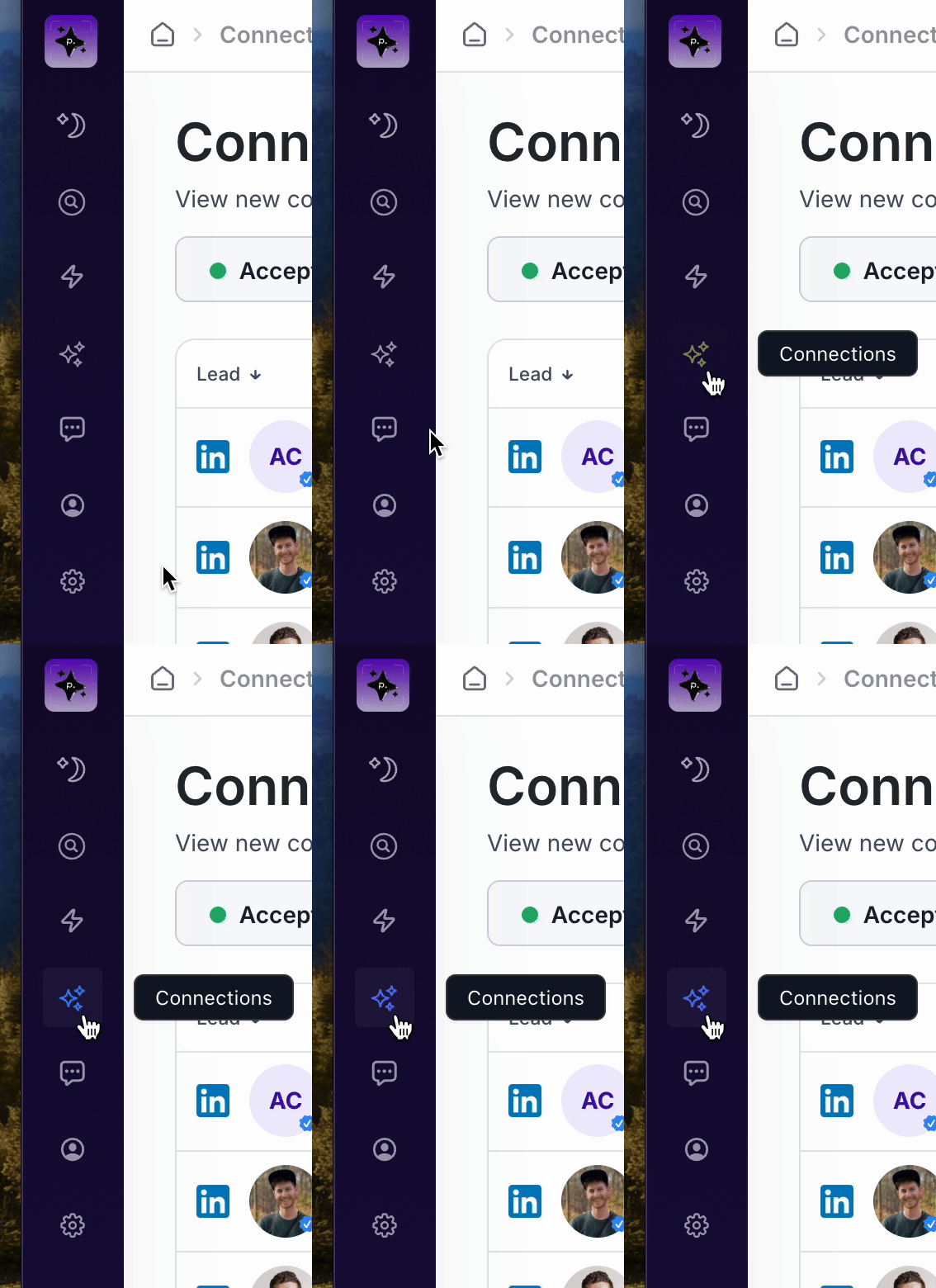
Click the purple
Export CSVbutton in the top right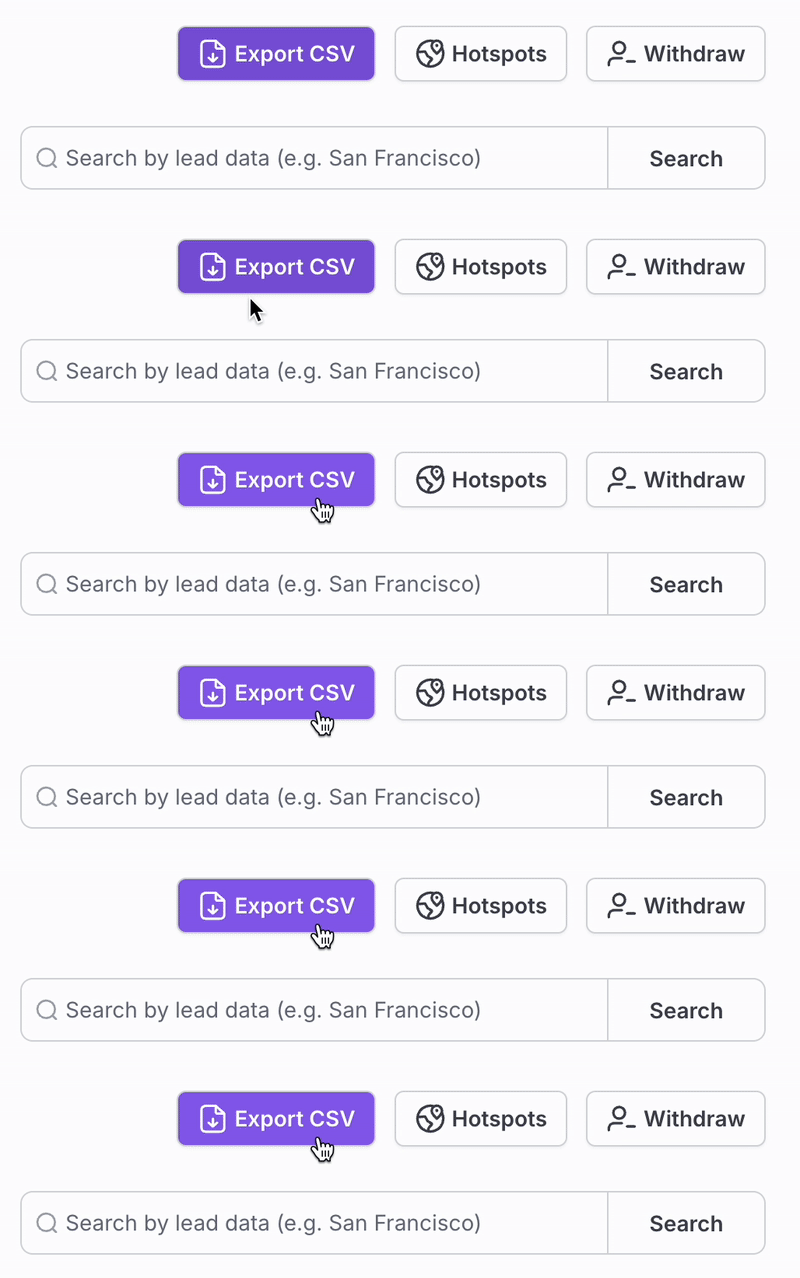
Select your desired date range.
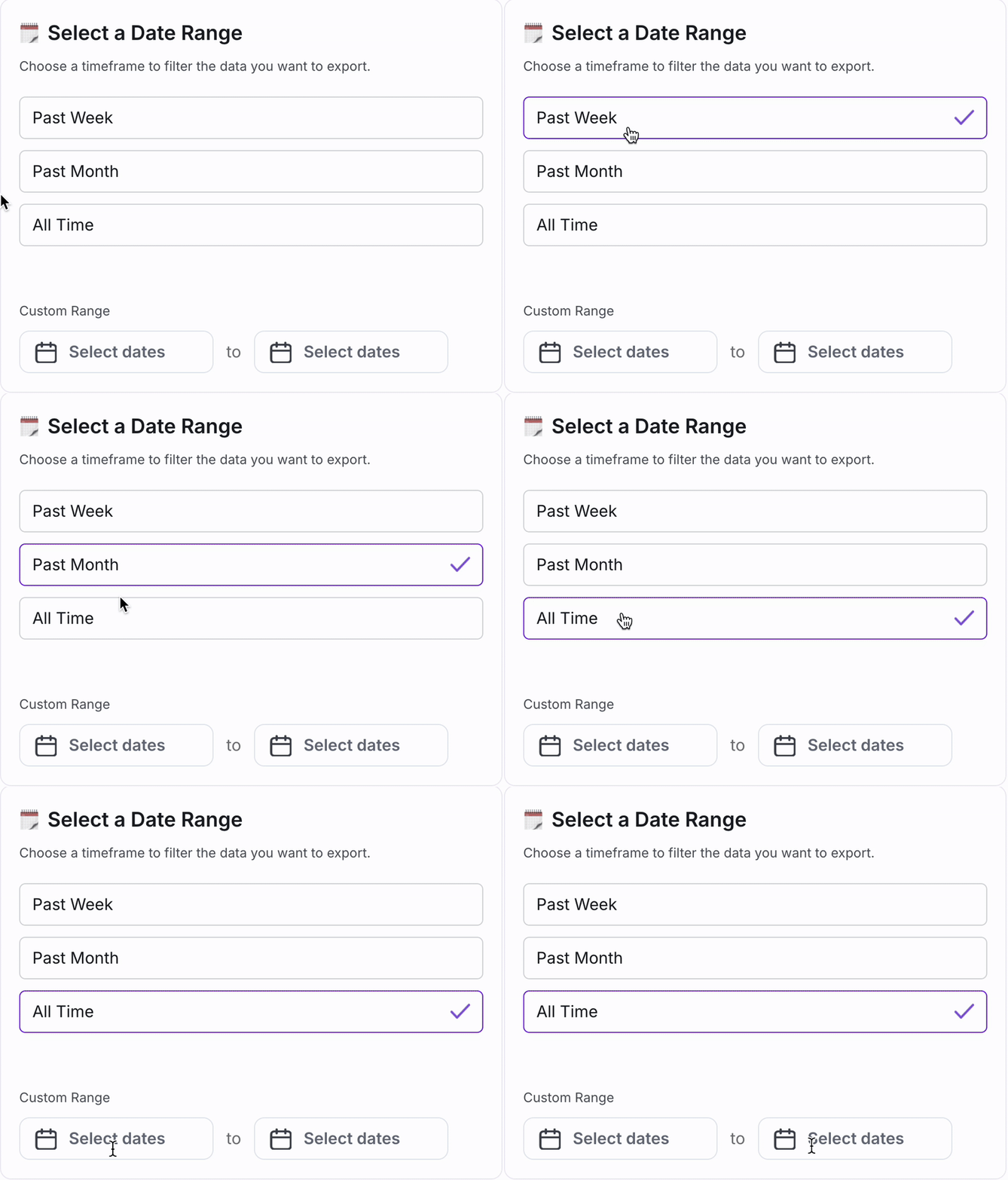
Date Range Options:
Past Week → Includes all accepted in the last 7 days.
Past Month → Includes all accepted from the last 30 days.
All Time → Exports your full list of accepted connections.
Custom Range → Pick exact start/end dates
Enrich Export with Emails + Phone Numbers (Optional): If you’d like more than just basic LinkedIn details, you can enrich your export to include verified contact information:
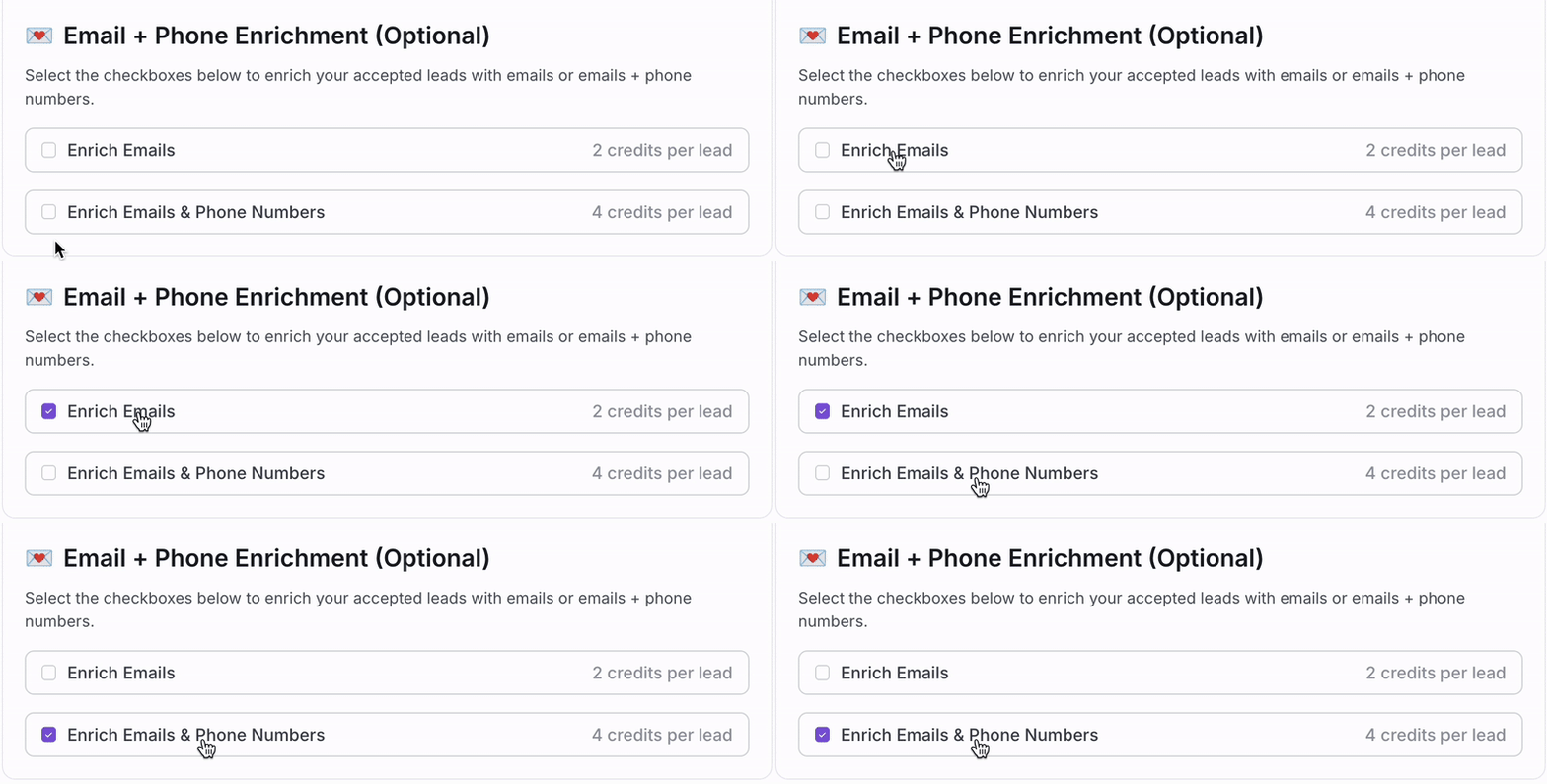
Email Data
Up to 3 email addresses per lead (if found).
Each email includes a type: Work or Personal.
Each email also includes a quality status: Valid, Risky, or Not Found.
Phone Number Data
Up to 3 standard phone numbers
Mobile number (if found)
Other phone (e.g., secondary, office line)
To finalize your export, click
Export CSV. The file will begin generating and download automatically.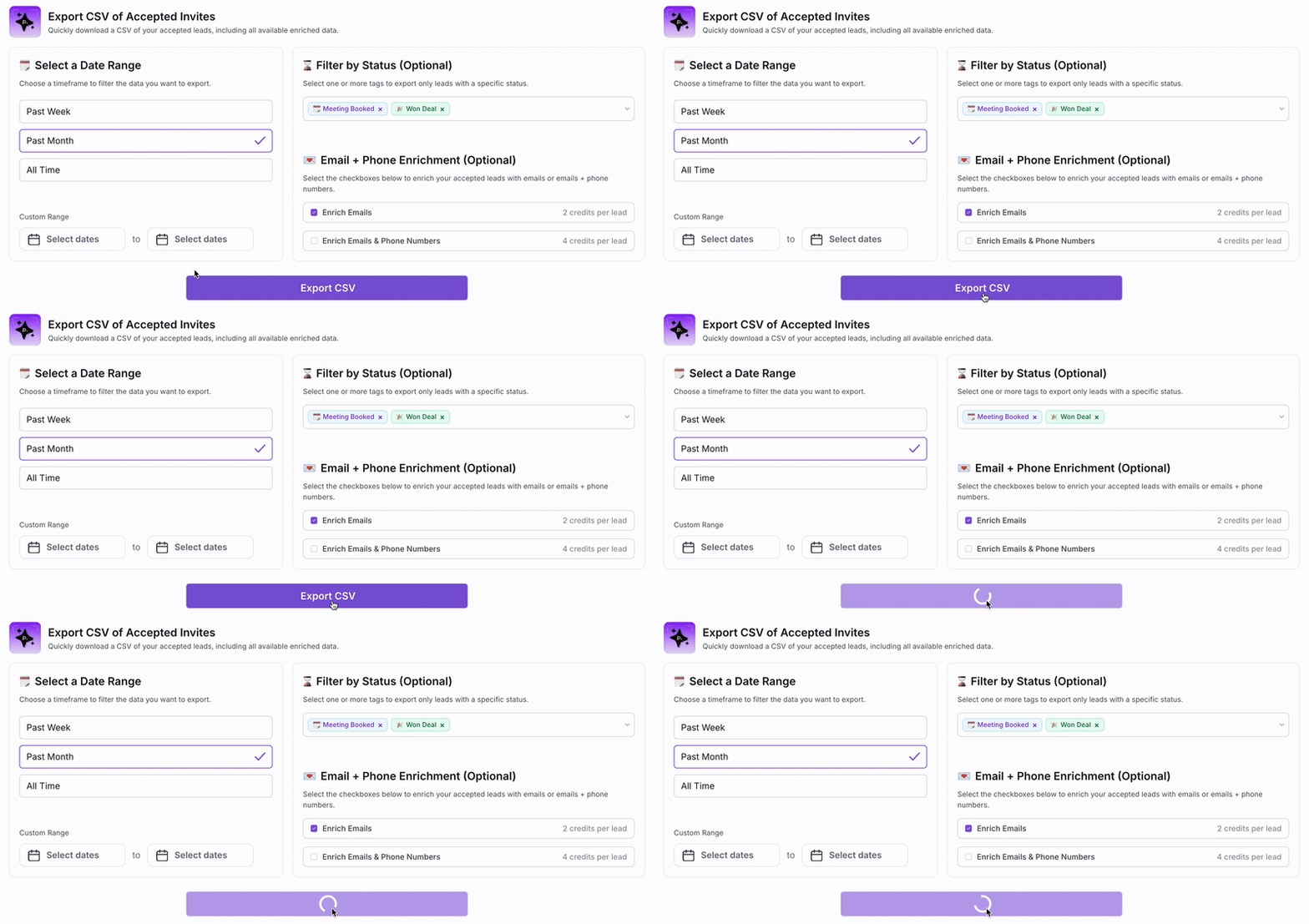
If you included enrichment (emails and/or phone numbers), it may take a few minutes to complete.