How to Create a Campaign
Last updated: March 17, 2025
Where?
In the left sidebar, click on
Campaigns
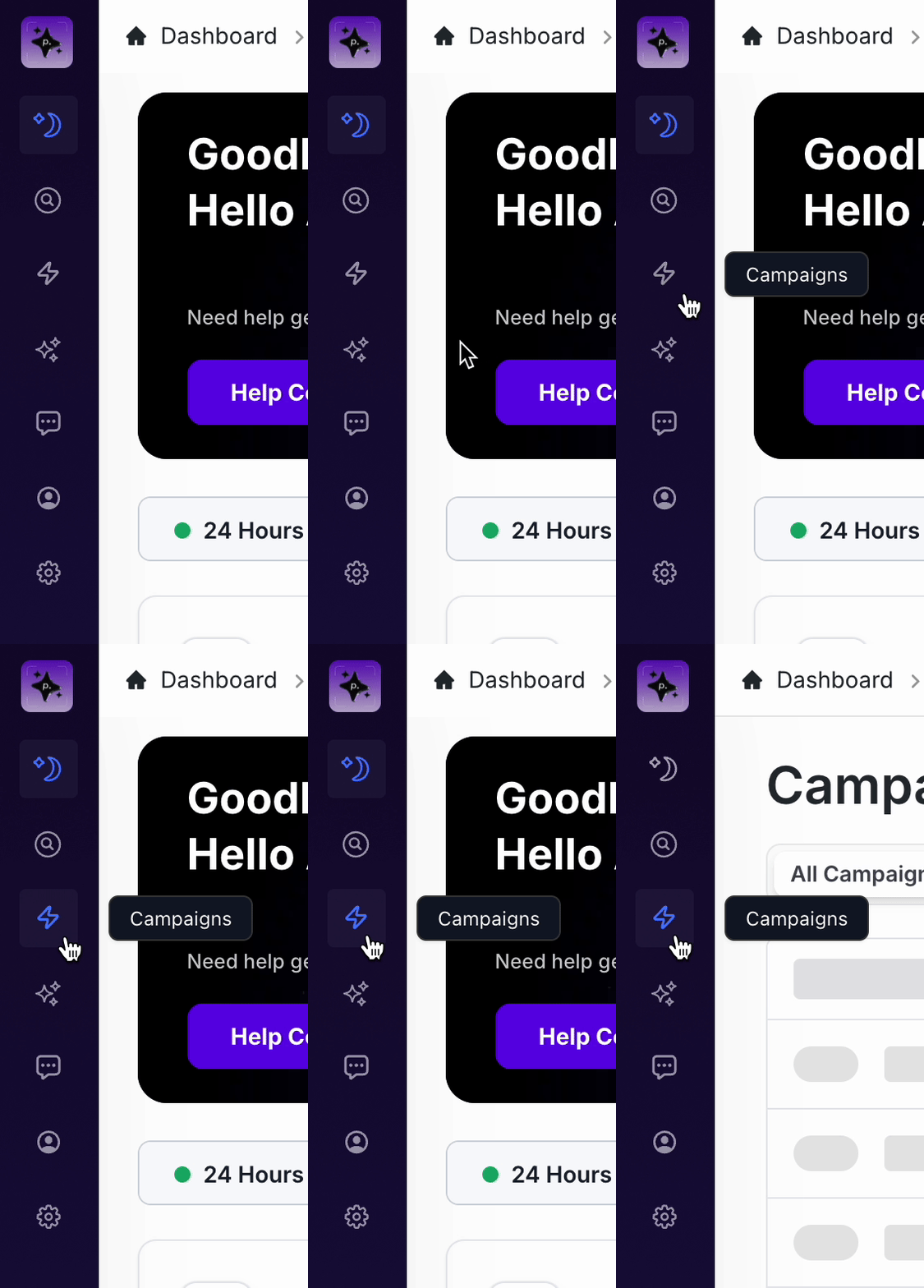
Click on
New Campaignin the top right

Creating a Campaign
Choose the name of the
Lead Listthat you want to run a campaign for under "Choose List"
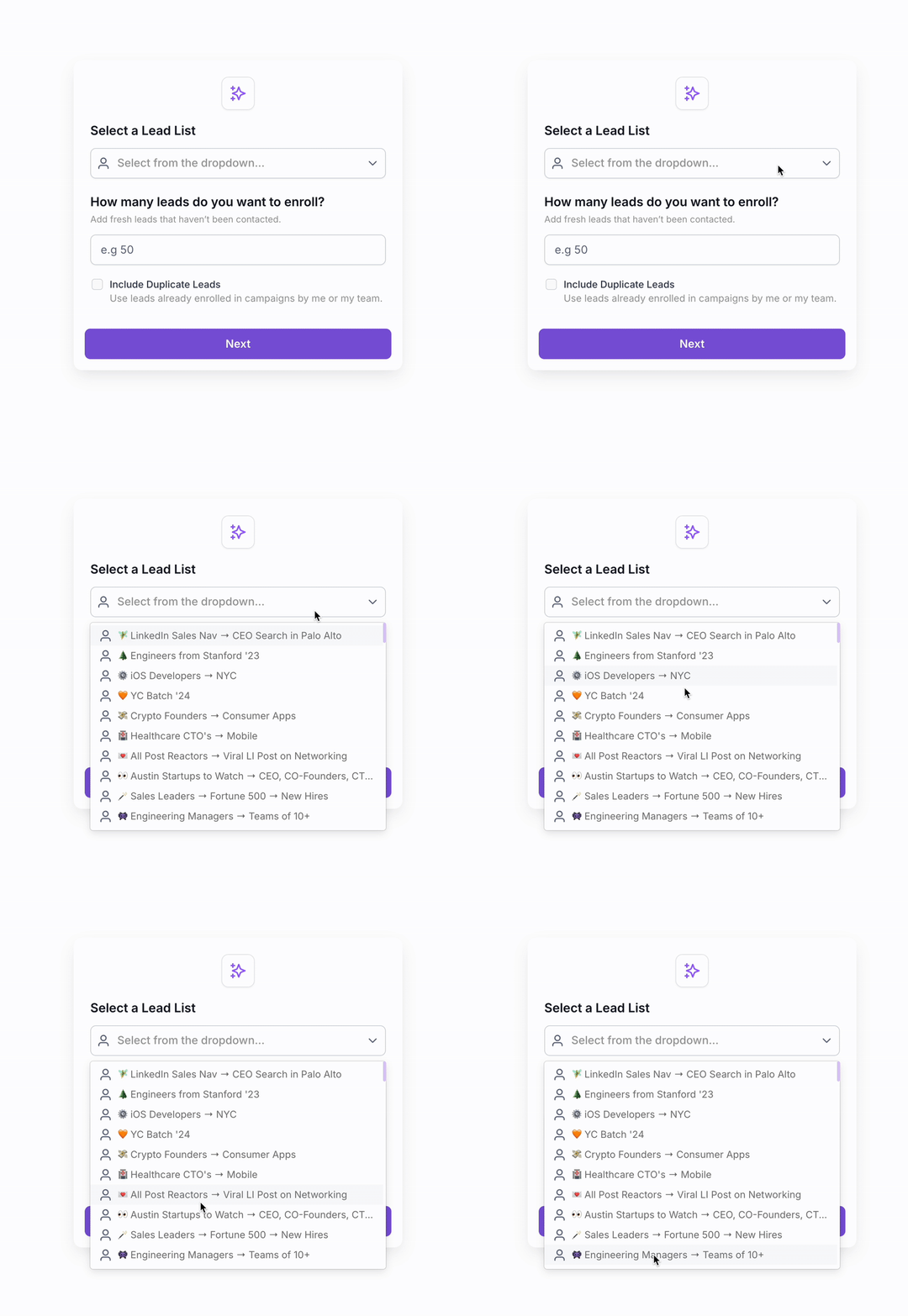
Enter the number of leads you want to add from this list in the field that asks "How many leads do you want to enroll in this campaign?"
Don't worry, this can always be updated later!
Click
NextCreate a campaign by clicking on the Campaign Steps in the right side.
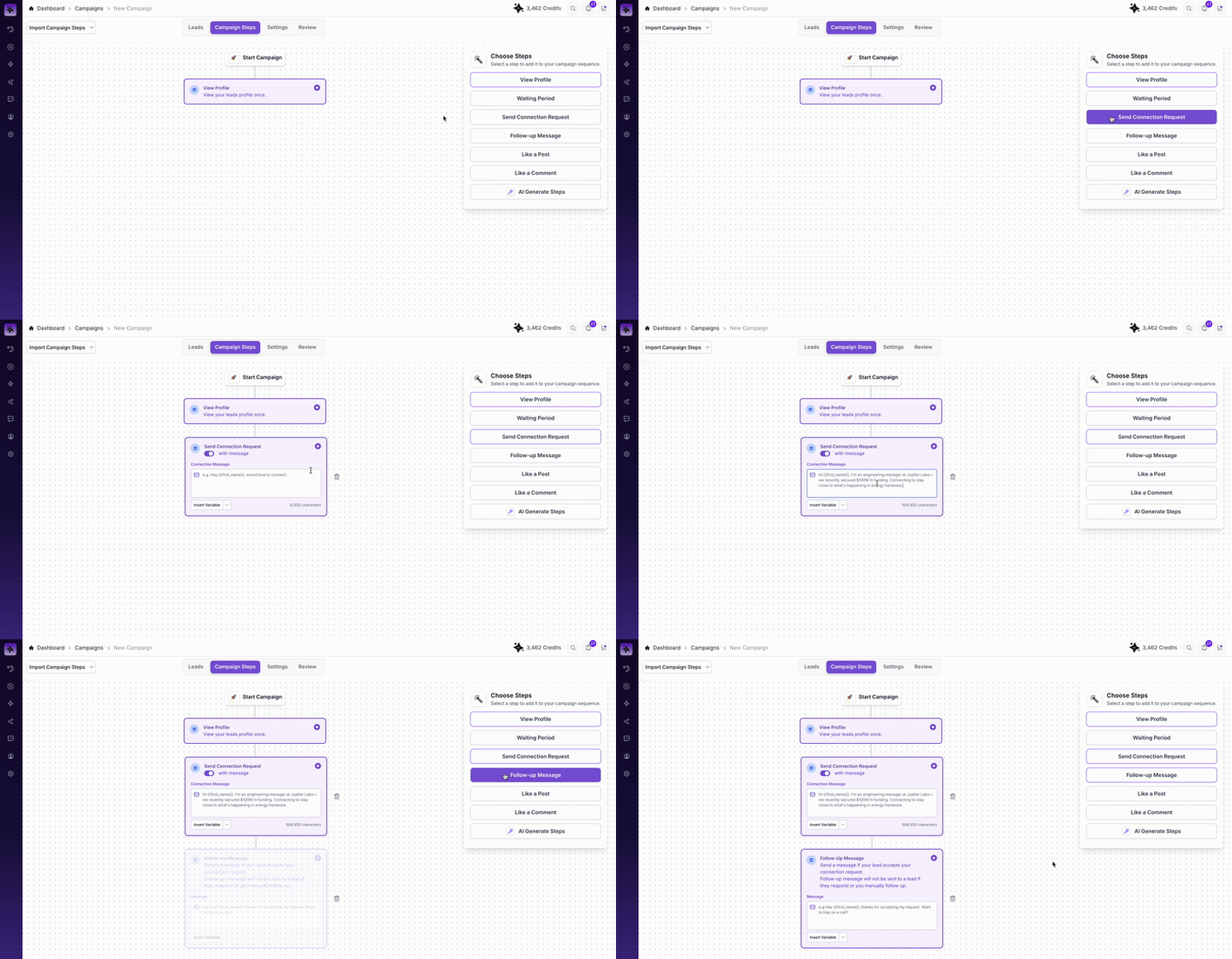
Building a Campaign Sequence A common campaign flow is simply:
Step 1 → View Profile
Step 2 → Send Connection Request with Message
Step 3 → Waiting Period (1 Day)
Step 4 → Send Follow-Up Message
Click
NextName your campaign and choose your sending schedule
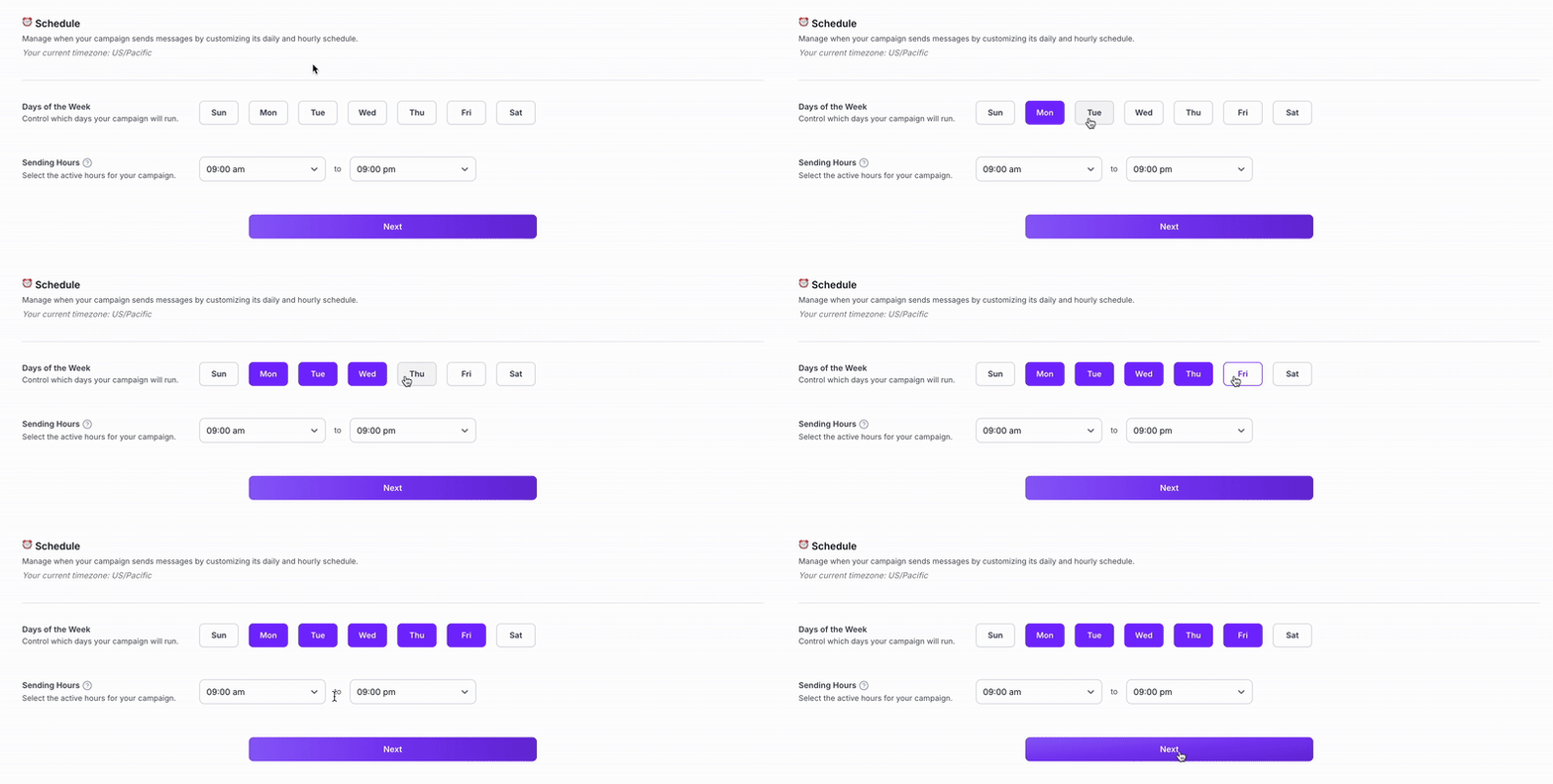
Setting a Sending Schedule To continue, click
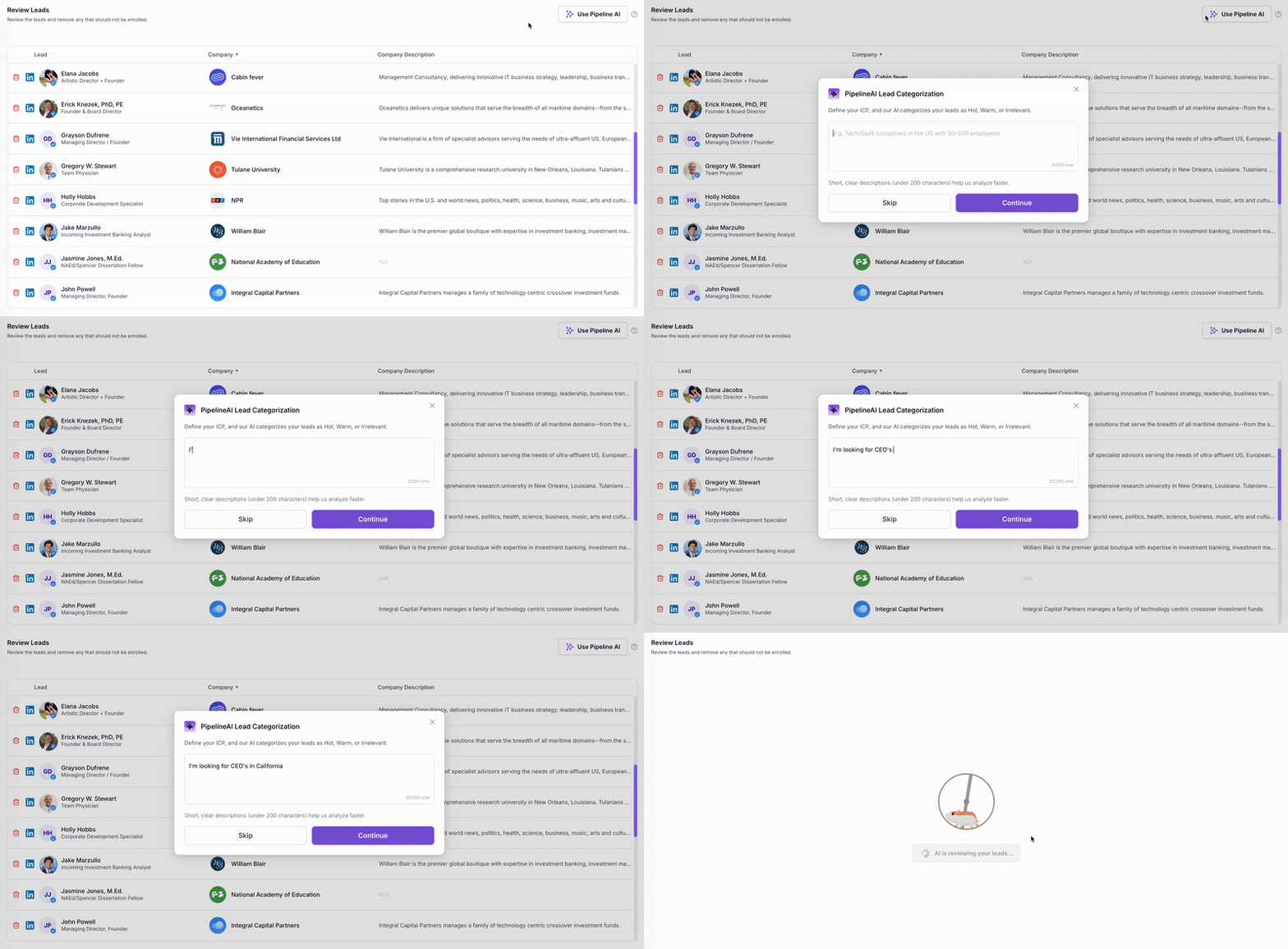
NextReview your Leads and decide if you want to remove any from the campaign.
💡 Tip:
Use Pipeline AIif you'd like to have Pipeline categorize your leads based on your ICP as Hot, Warm and Irrelevant.
Once you're happy with everything, click
launchto launch your campaign 🚀