How to Add/Remove Leads from a Launched Campaign
Last updated: March 17, 2025
Where
In the left sidebar, click on
Campaigns
Click on the Campaign you want to add/remove leads to to open the details
Click on
Leads Enrolledtab in the Navigation Bar within your campaign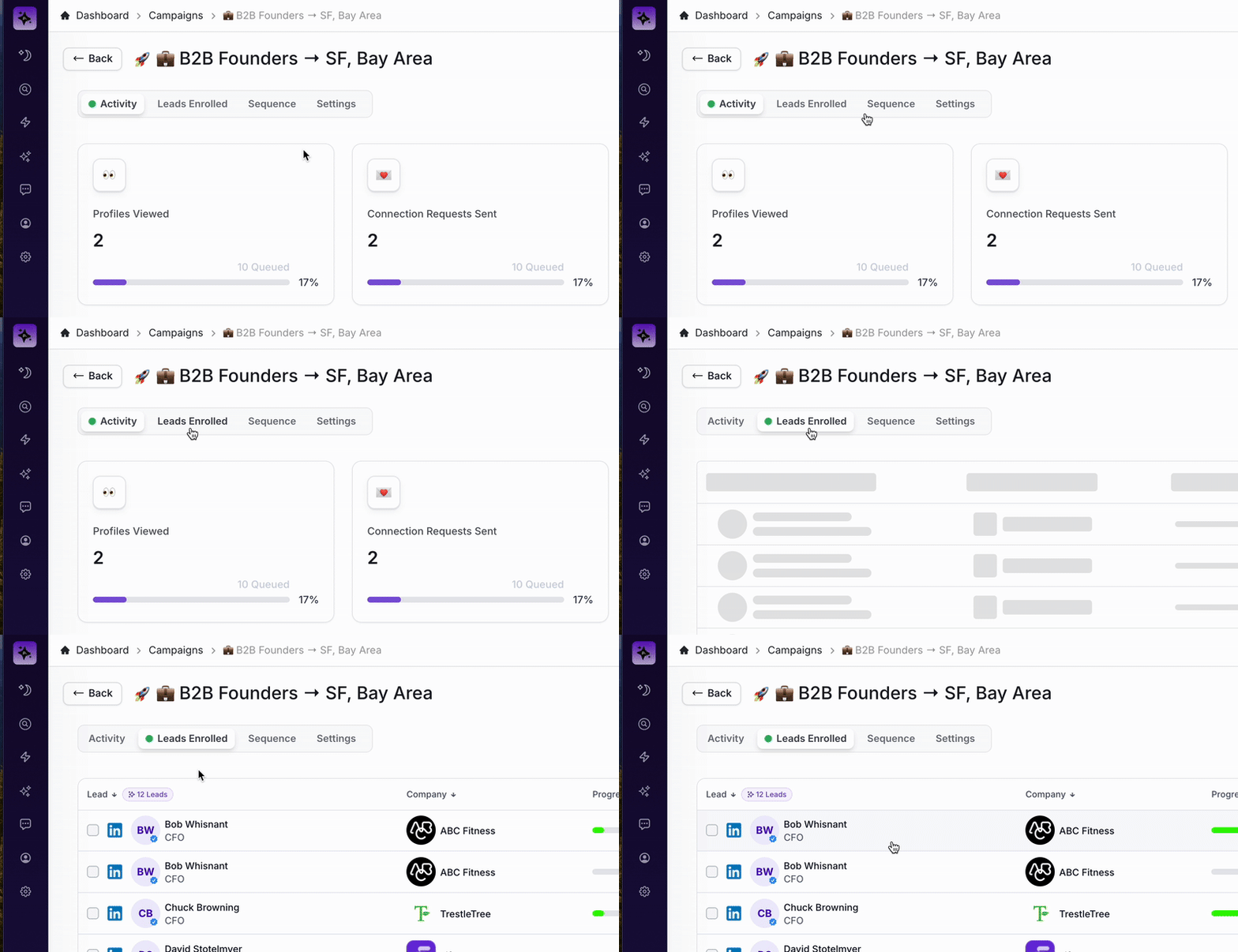
Leads Enrolled Navigation Tab Location
How to Add Leads from a Campaign
Click on
Add Leadsnext to the Navigation Bar in the top
Add Leads Button Location Enter the number of leads you want to add to the campaign
Click
Continueto add the new leads
Important: You can only add leads to a campaign from the lead list used to create the campaign. The campaign will pull the specified number of leads from that list.
How to Remove Leads from a Campaign
Click on the
Checkboxby the name of the lead you want to remove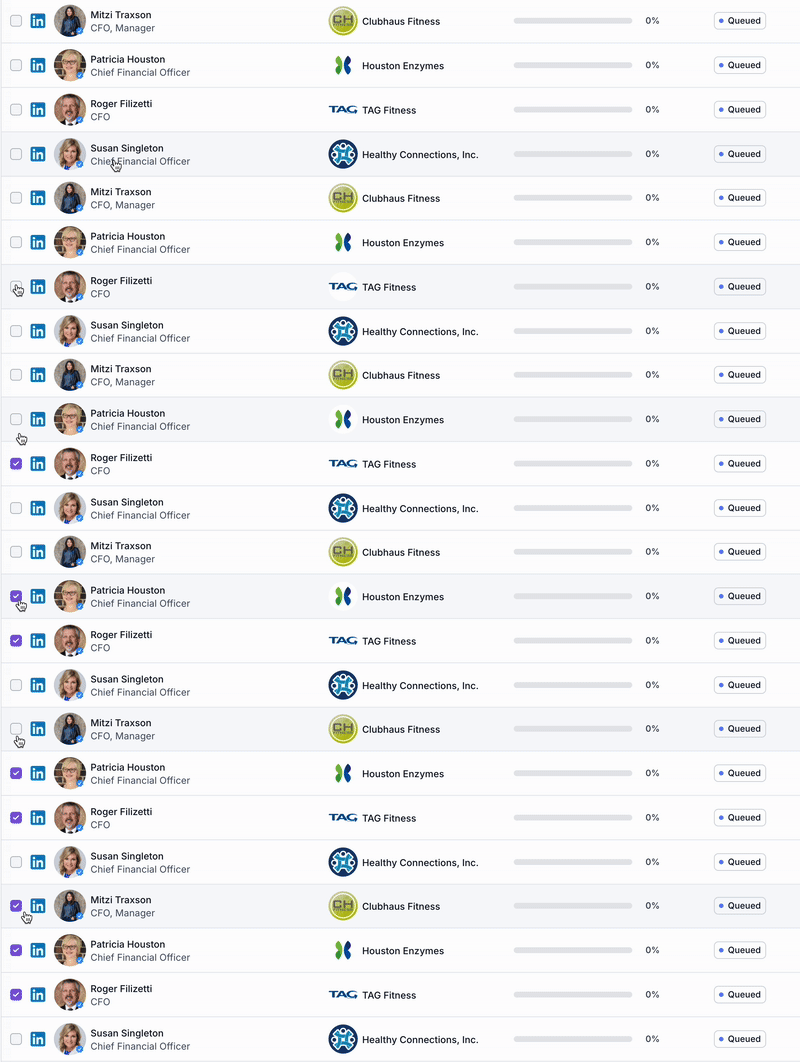
Selecting Leads to Delete via checkbox Click on the
Remove Leadsbutton that appears when a lead is selected and confirm you'd like to remove them from the current campaign.
Remove Leads Button Location Confirm the removal by clicking
Delete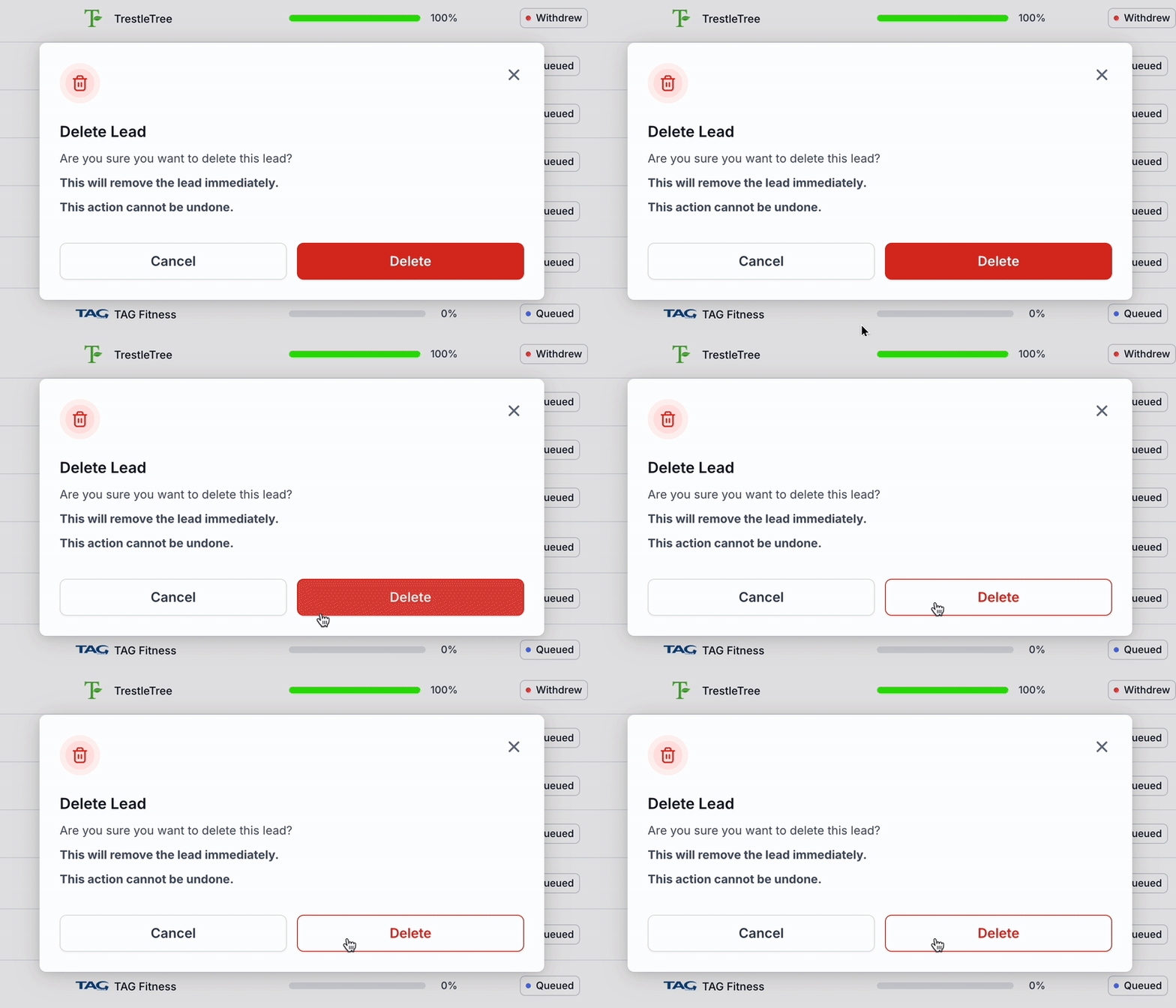
Remove Leads from Campaign Confirmation