Connect Zapier to Pipeline
Last updated: March 3, 2026
Connect Pipeline to Zapier to trigger automations across thousands of tools - without writing a single line of code.
Send leads, campaign activity, or status updates into your existing workflows and build custom logic that fits your stack.
If it connects to Zapier, it can connect to Pipeline.
🚀 How to Send Pipeline Campaign/Lead Data to Zapier
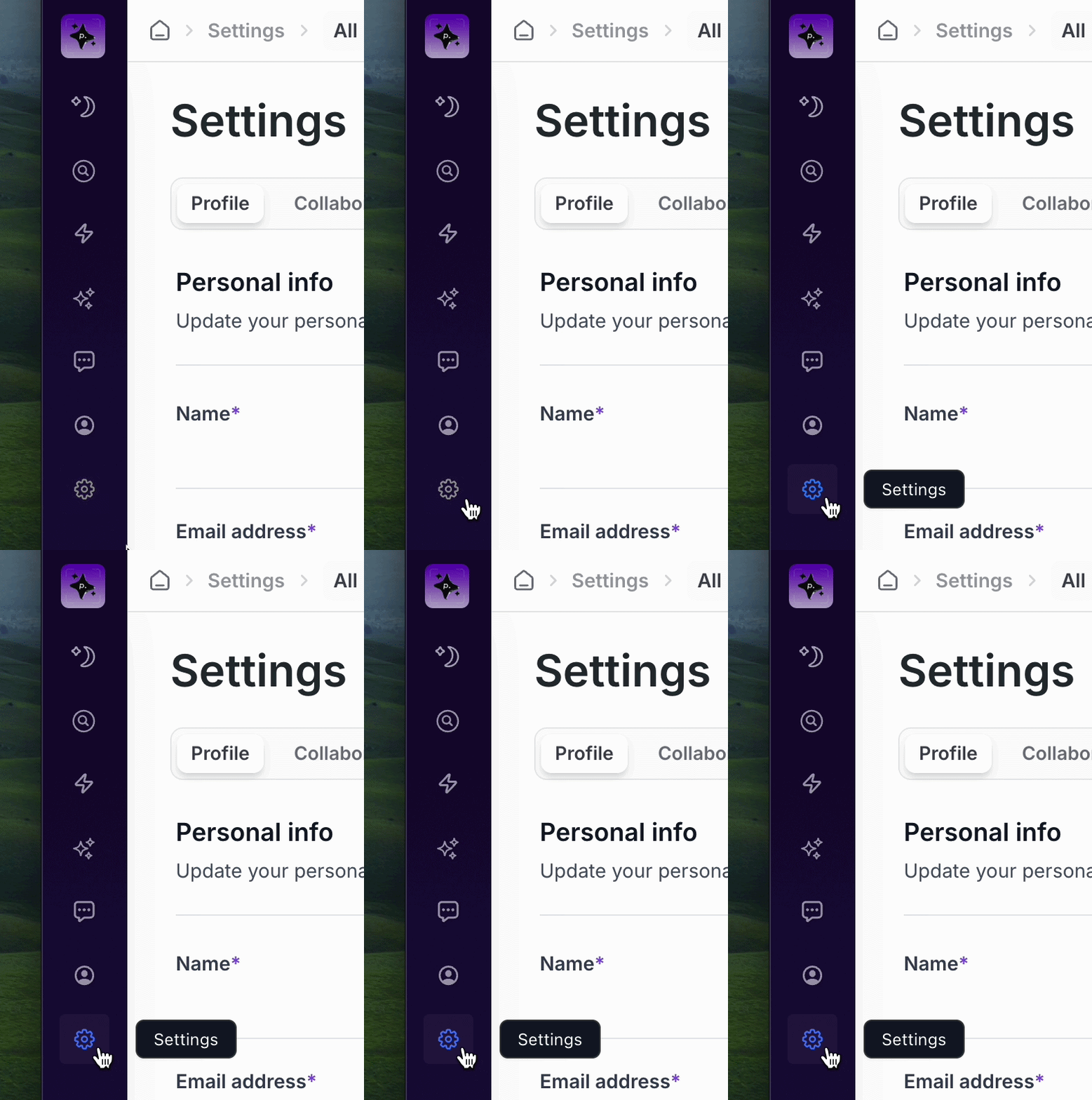
Click the Settings tab in Pipeline.
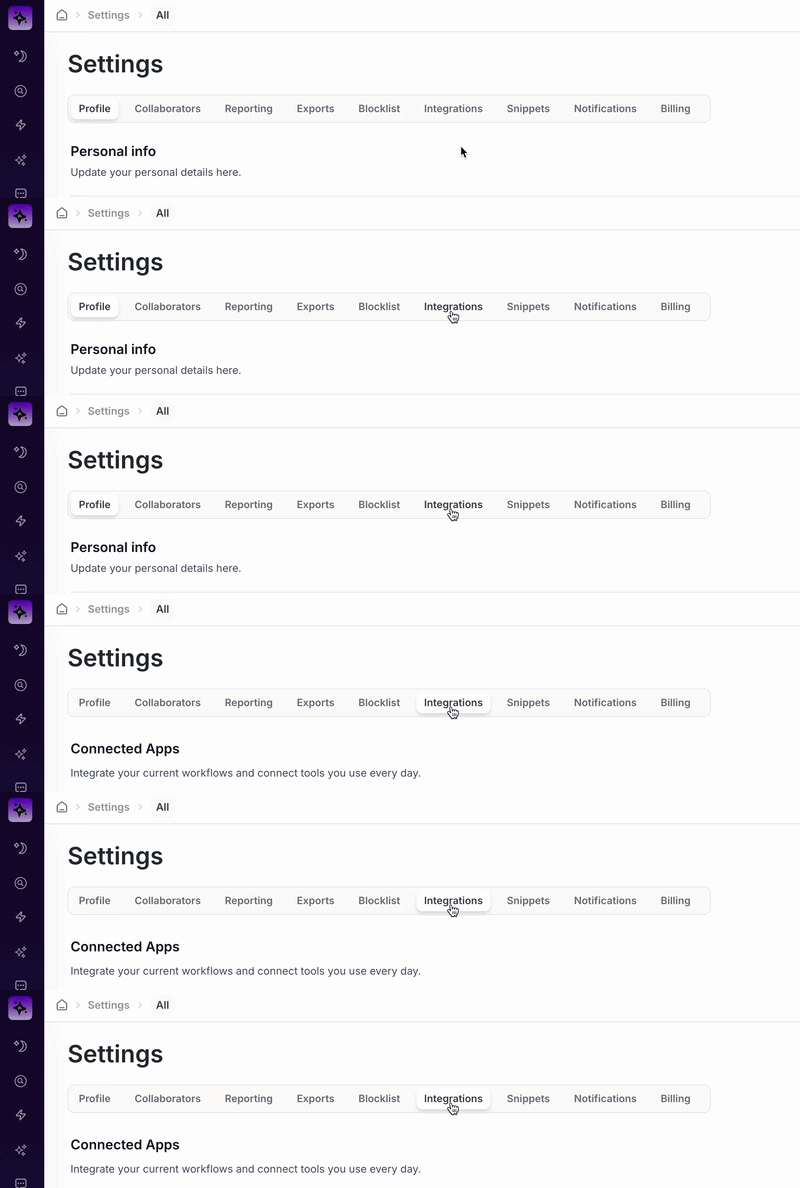
Click the Integrations tab.
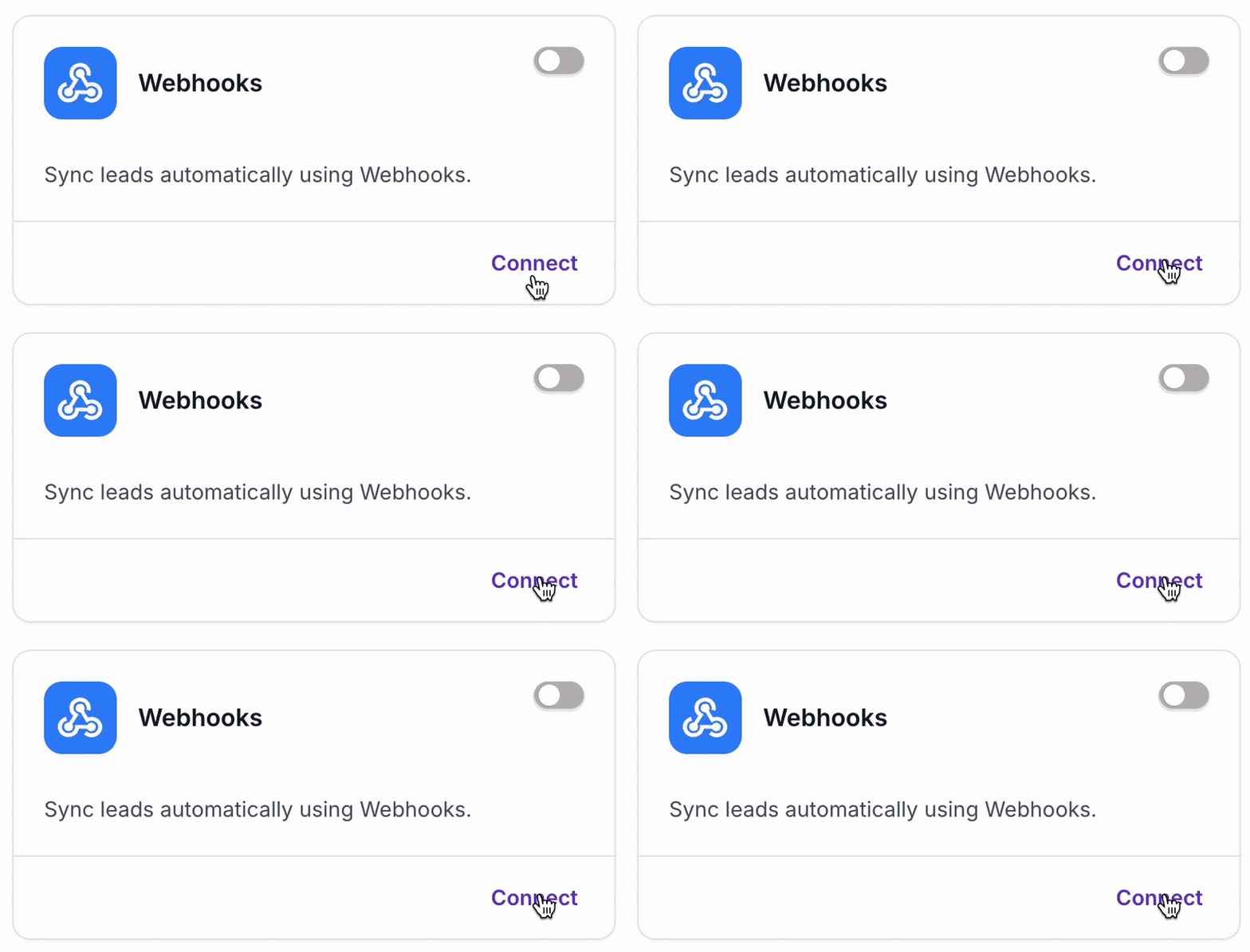
In the Webhooks integration tile, click Connect.
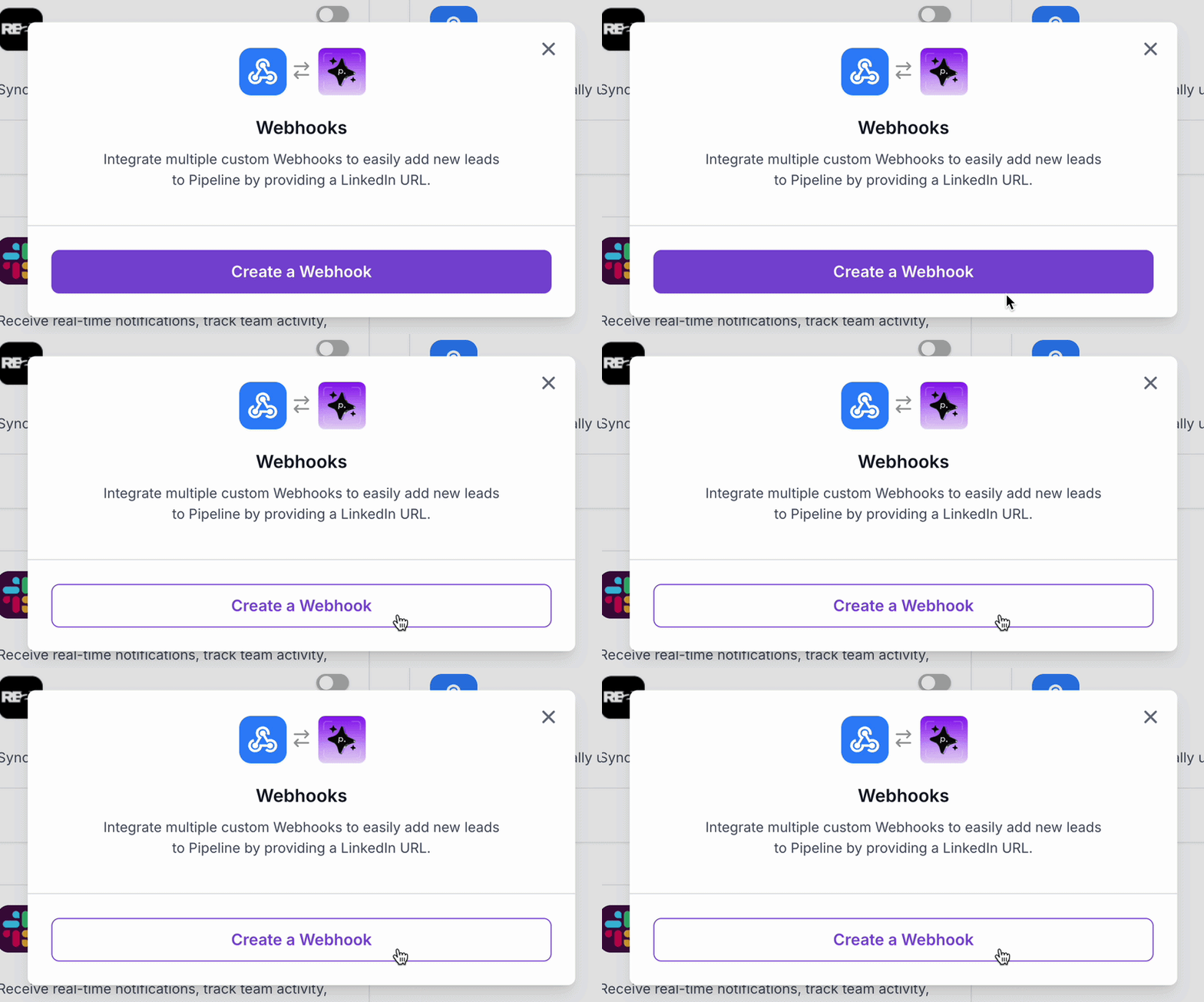
Click Create New Webhook.
Copy the generated Webhook URL and click Next.
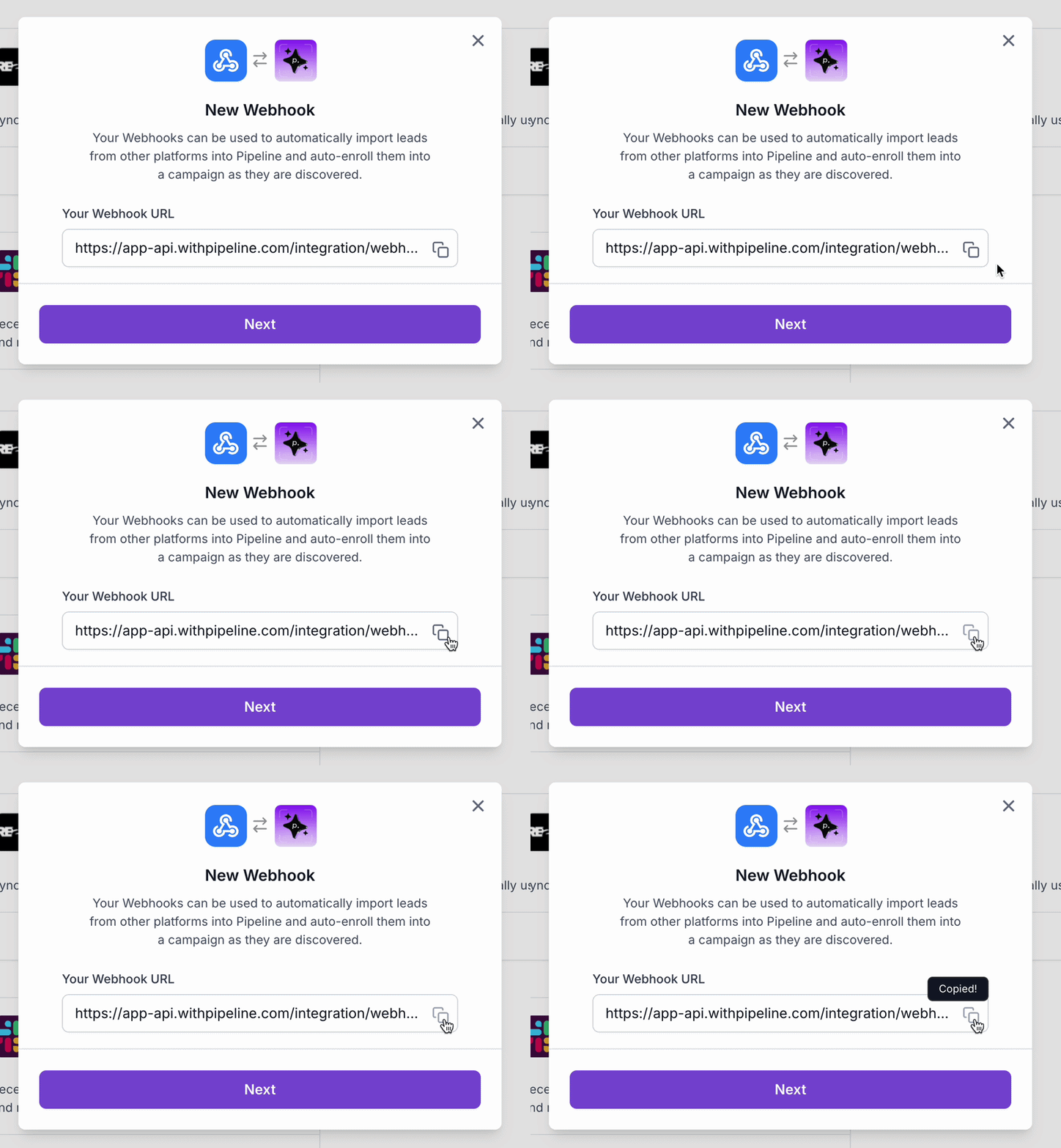
(Optional) Click Done once you’ve shared it with your team.
Now navigate to your Zapier account and click Create, then click Create Zap.
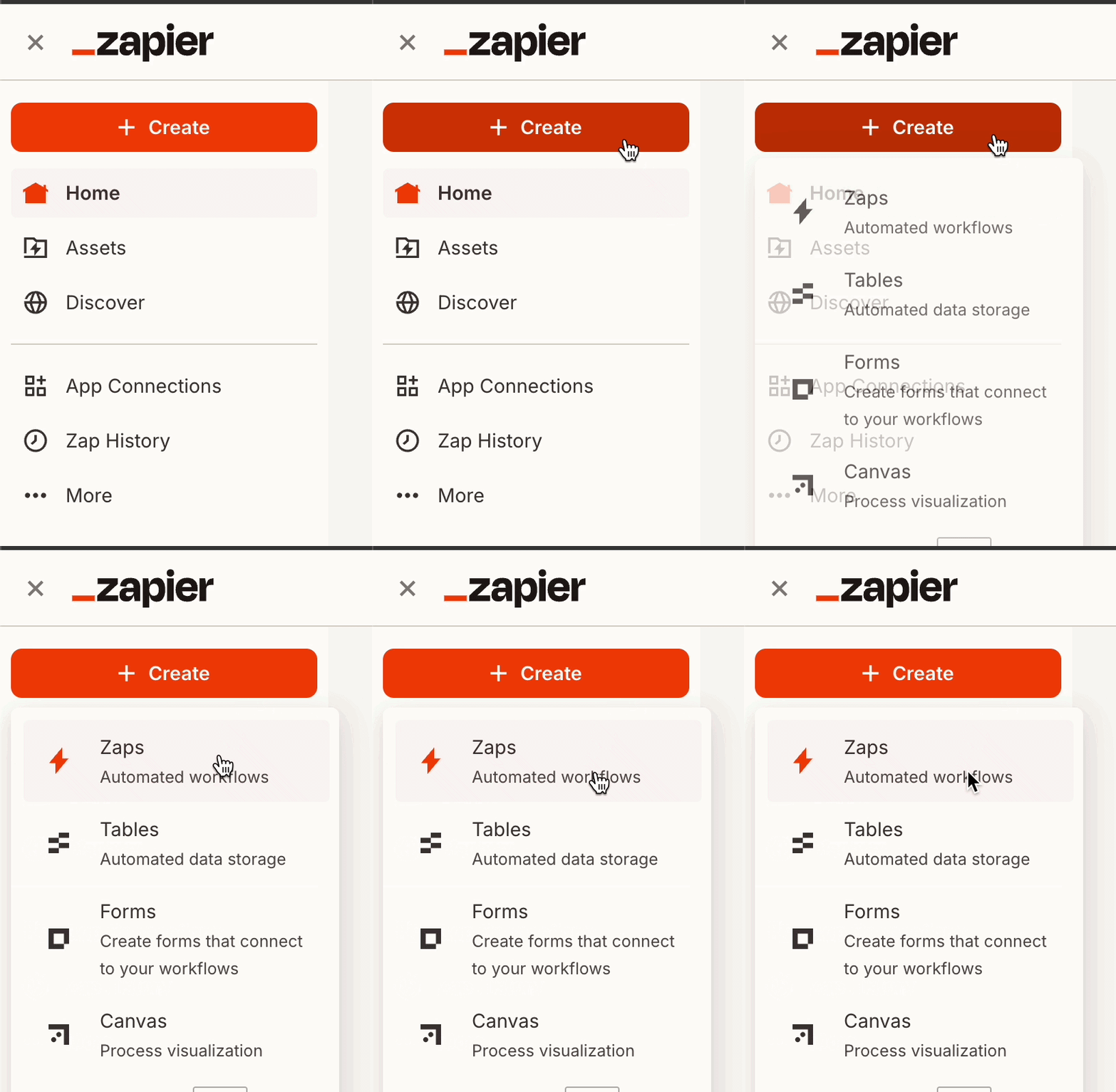
Click Trigger to open Zapier’s automation library and search for Webhooks and select it.
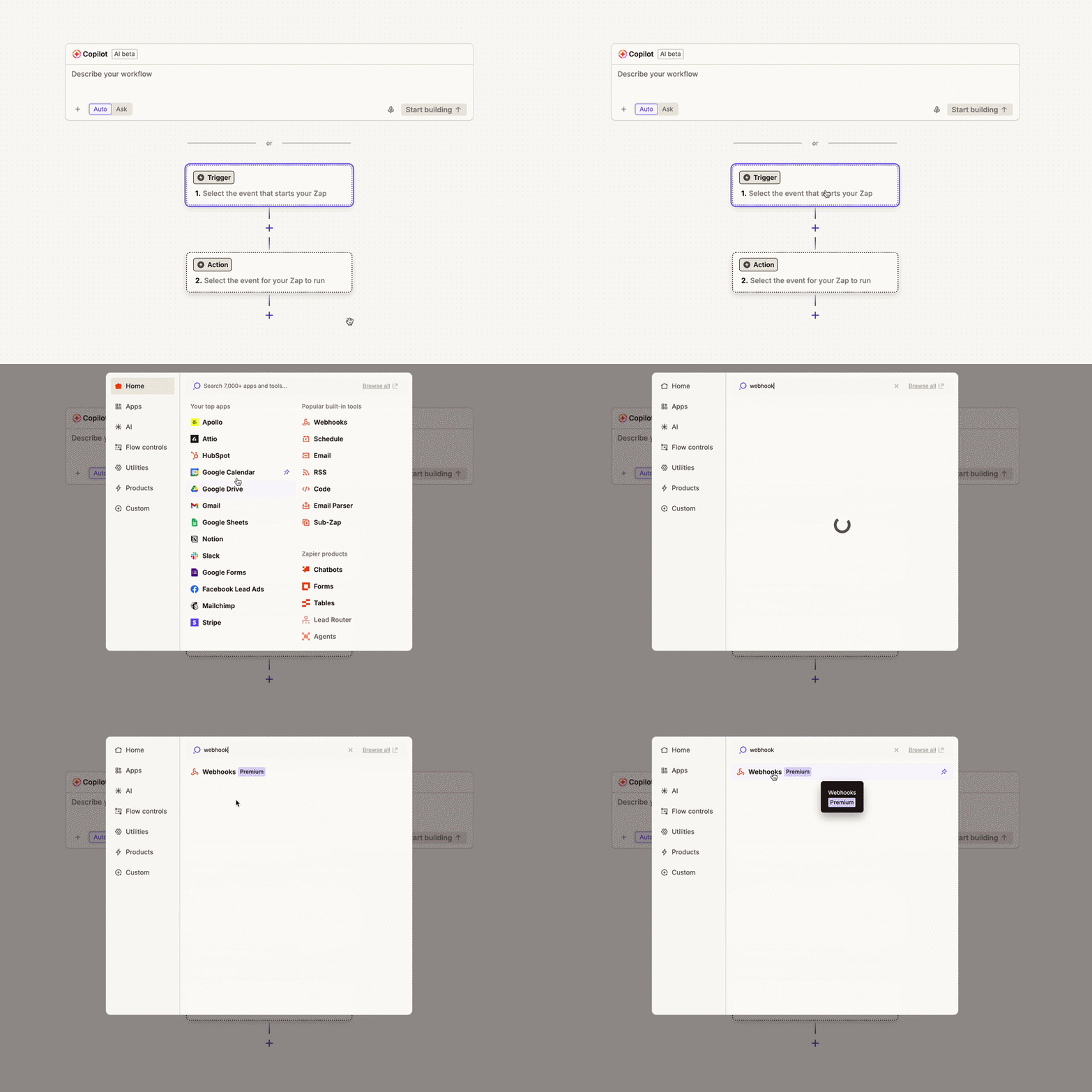
In Trigger 1 Webhooks, under Trigger Event, select Retrieve Poll and click Continue.
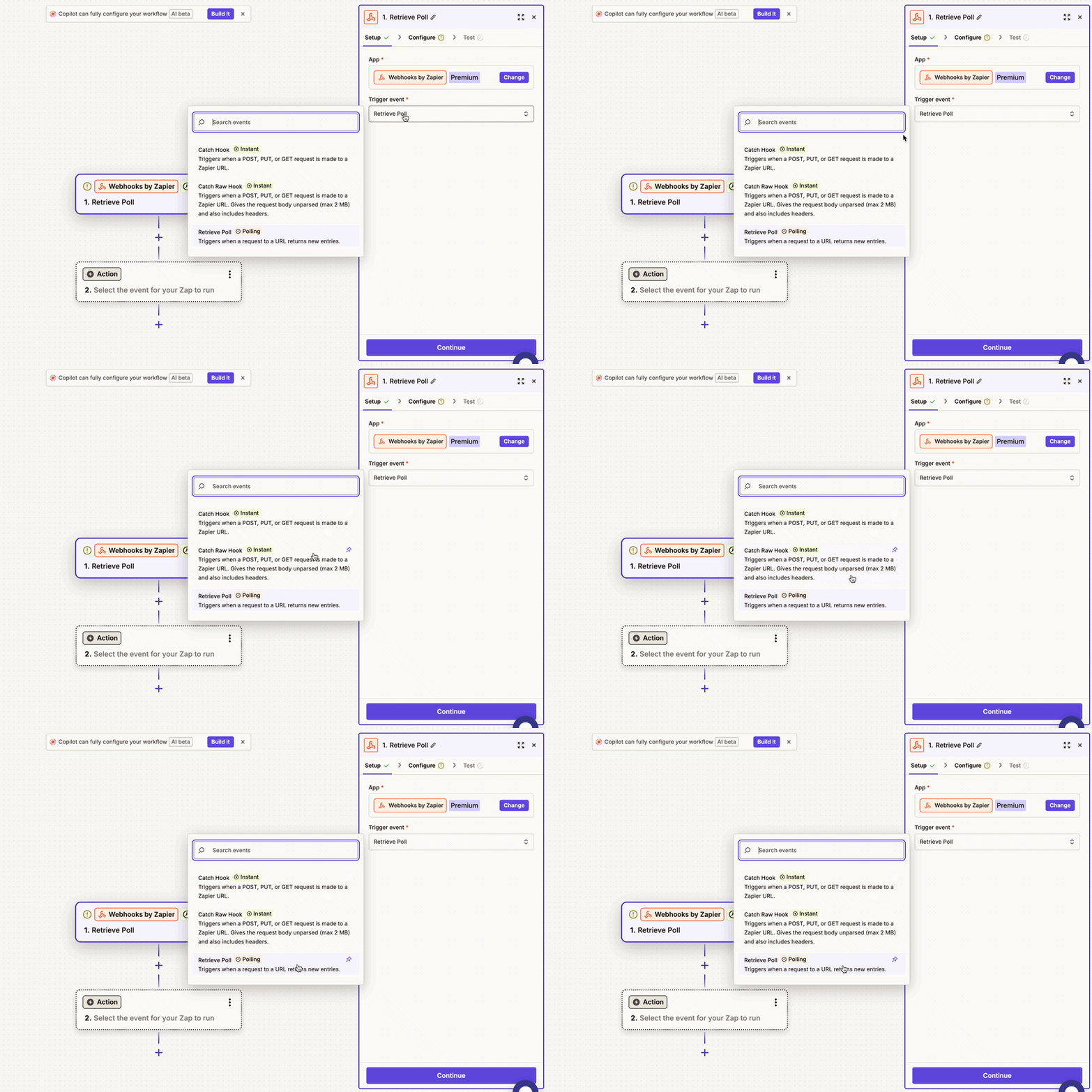
Now under "Configure", paste your Pipeline Webhook URL into the URL field and under Deduplication Key, enter:
feed_idand click Continue.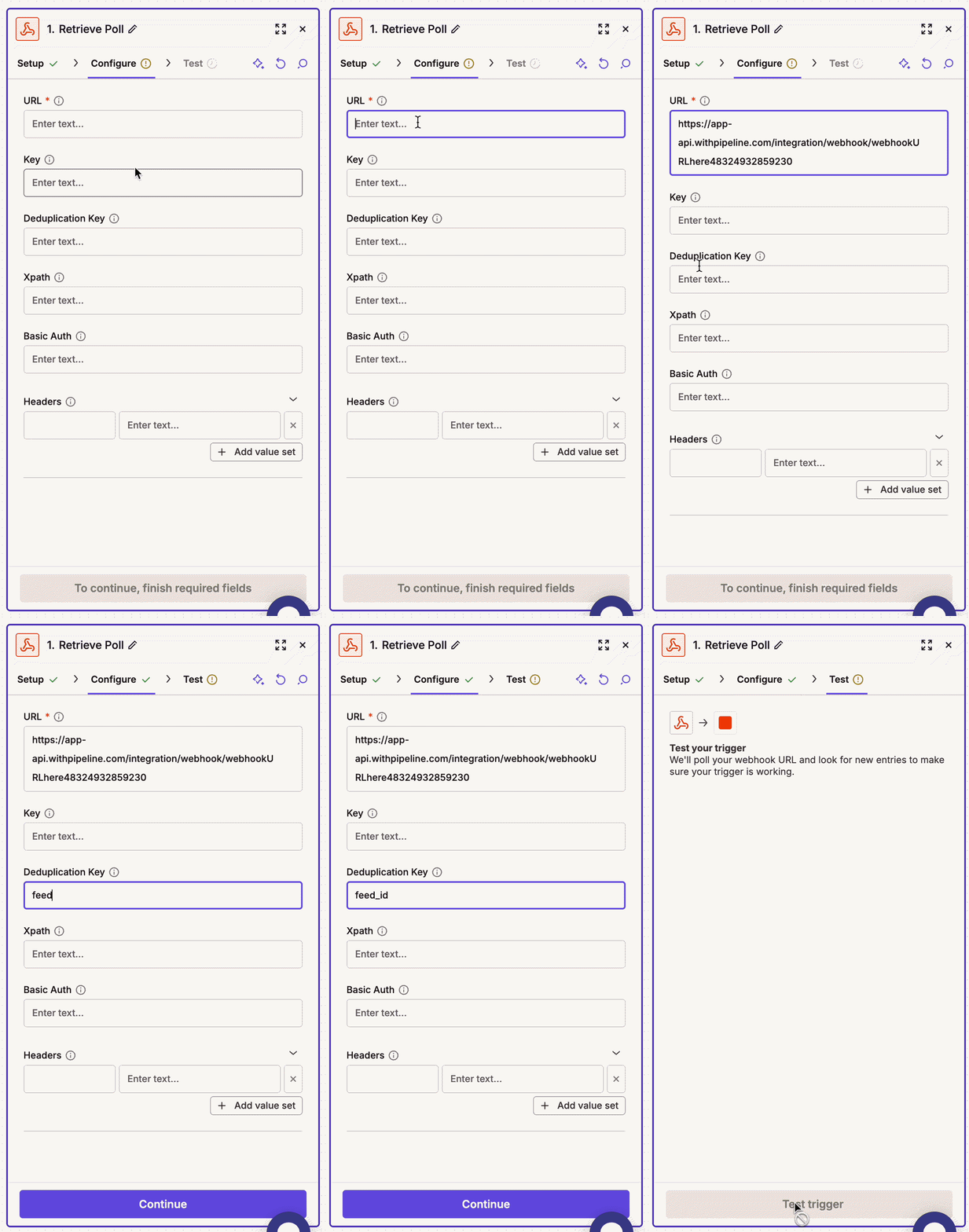
🎉 Your webhook is now connected to Zapier.
Click Test Webhook to retrieve the latest 3 campaign events from your Pipeline activity feed to make sure it's working properly!
Once connected, you can build custom workflows using the campaign and lead data sent from Pipeline to trigger automations across your tech stack using any of Zapier’s connected apps.
Example JSON payload that Pipeline sends to Zapier:
{
  "first_name": "Sarah",
  "last_name": "Mitchell",
  "email": "sarah@brightwavelabs.com",
  "linkedin_profile": "https://www.linkedin.com/in/sarah-mitchell",
  "profile_pic": "https://example.com/avatar.jpg",

  "job_title": "Head of Marketing",
  "company": "BrightWave Labs",

  "sequence_name": "Sent Connection Request",
  "message": "Hi Sarah, would love to connect."
}