Connect Attio to Pipeline
Last updated: March 3, 2026
💬 Why Connect Attio?
Pipeline sends your campaign data - including leads, replies, and activity directly into Attio in real time. You control what happens next inside Attio using custom workflows - whether that’s creating new records, updating existing ones, or triggering follow-up automations.
🚀 How to Connect Attio to Pipeline
Log in to your Attio account.
In the sidebar menu, under Automations, click Workflows.
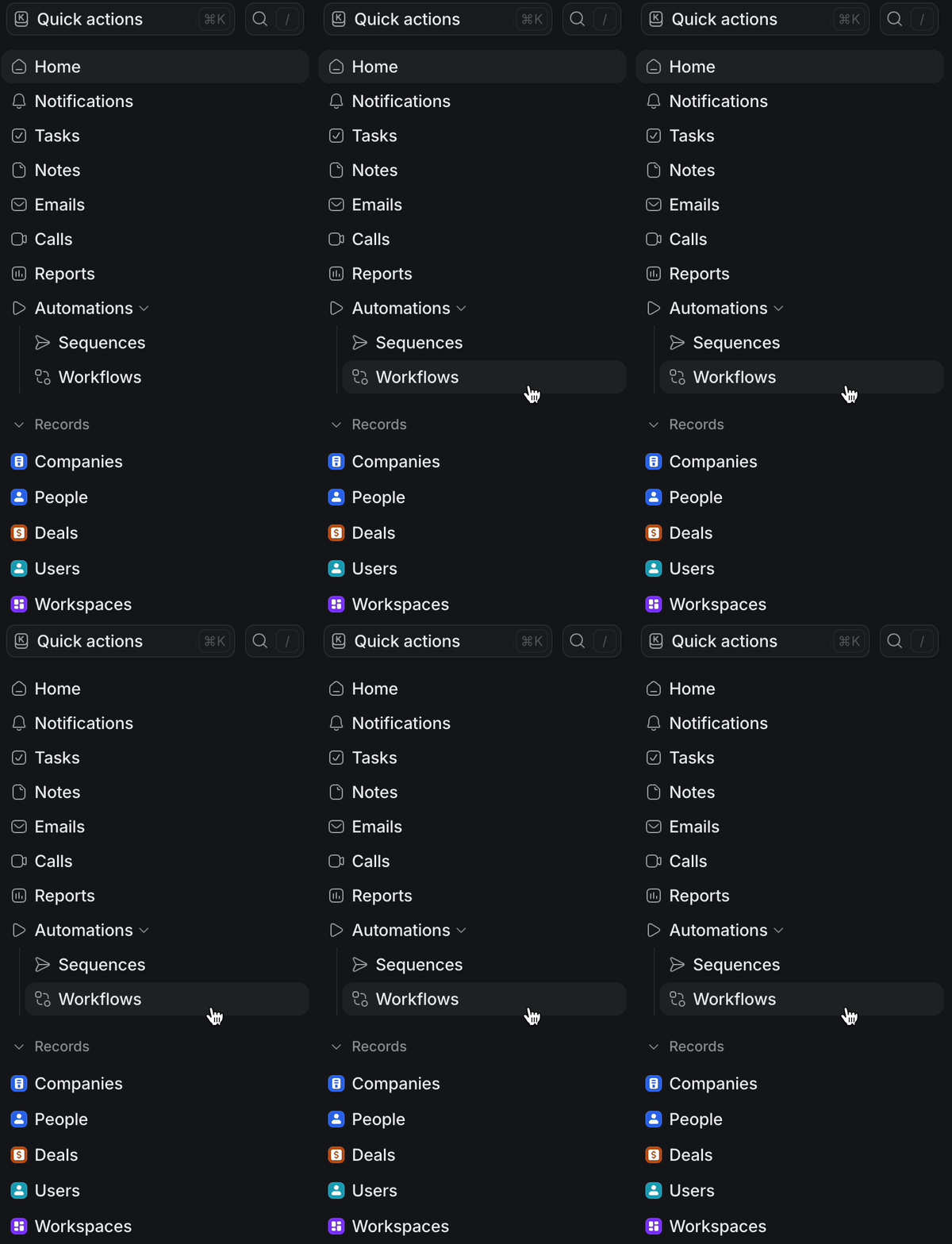
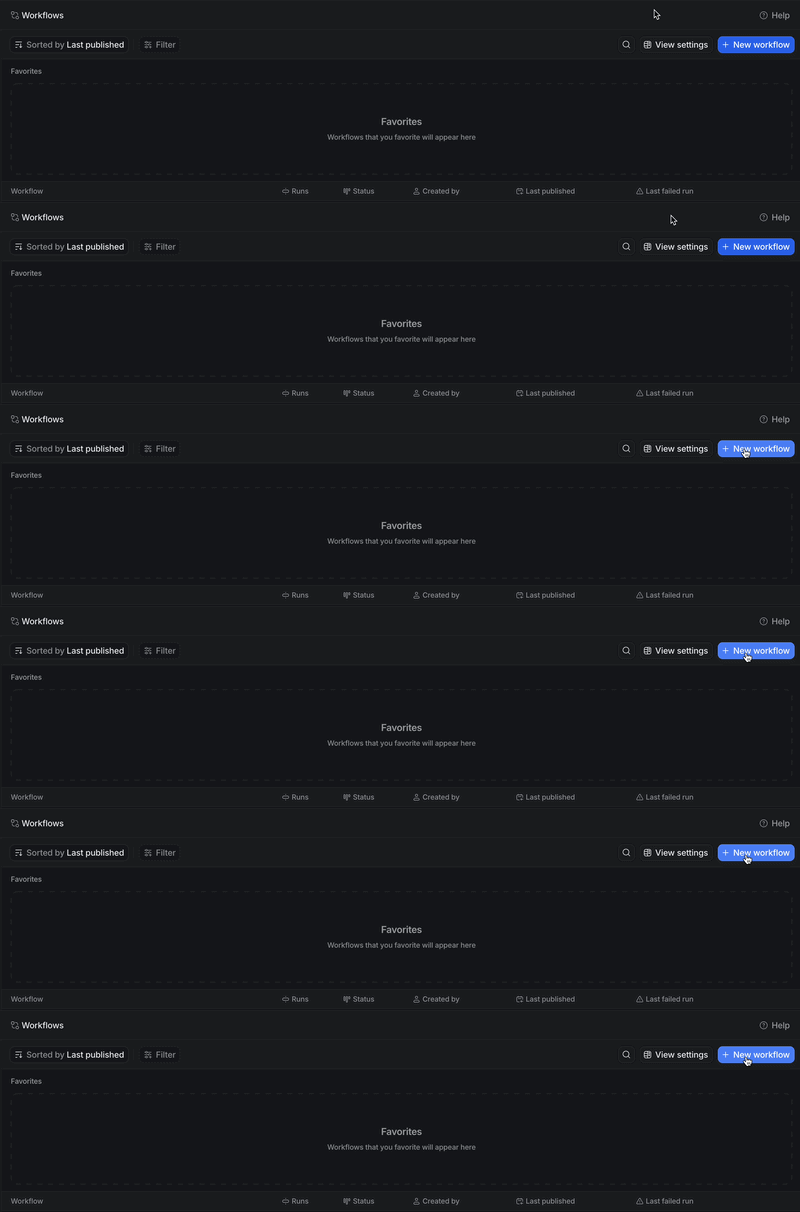
Click New Workflow in the top right of the Attio Workflows tab.
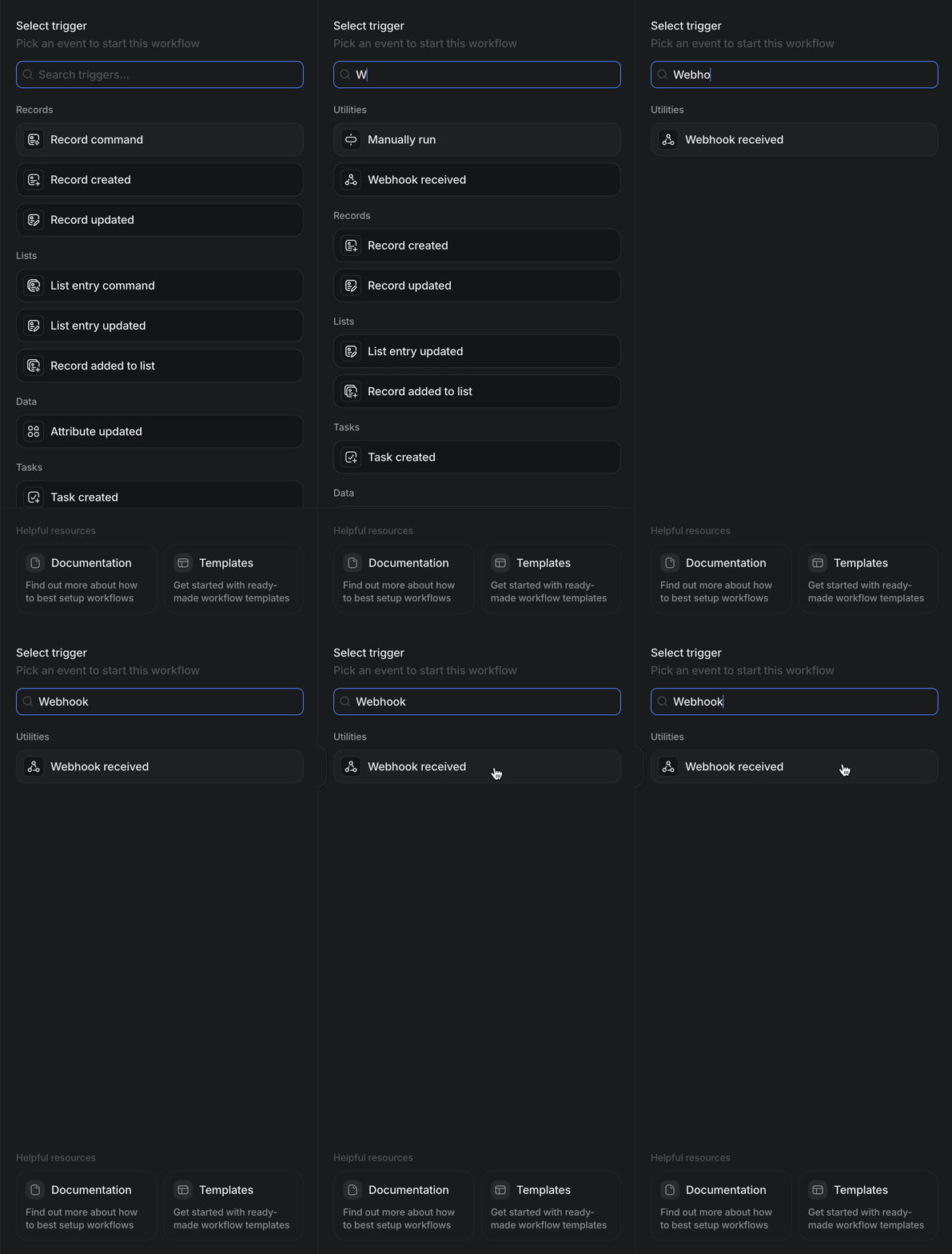
In the Select a Trigger search bar, type Webhook. Select Webhook Received as the first step.
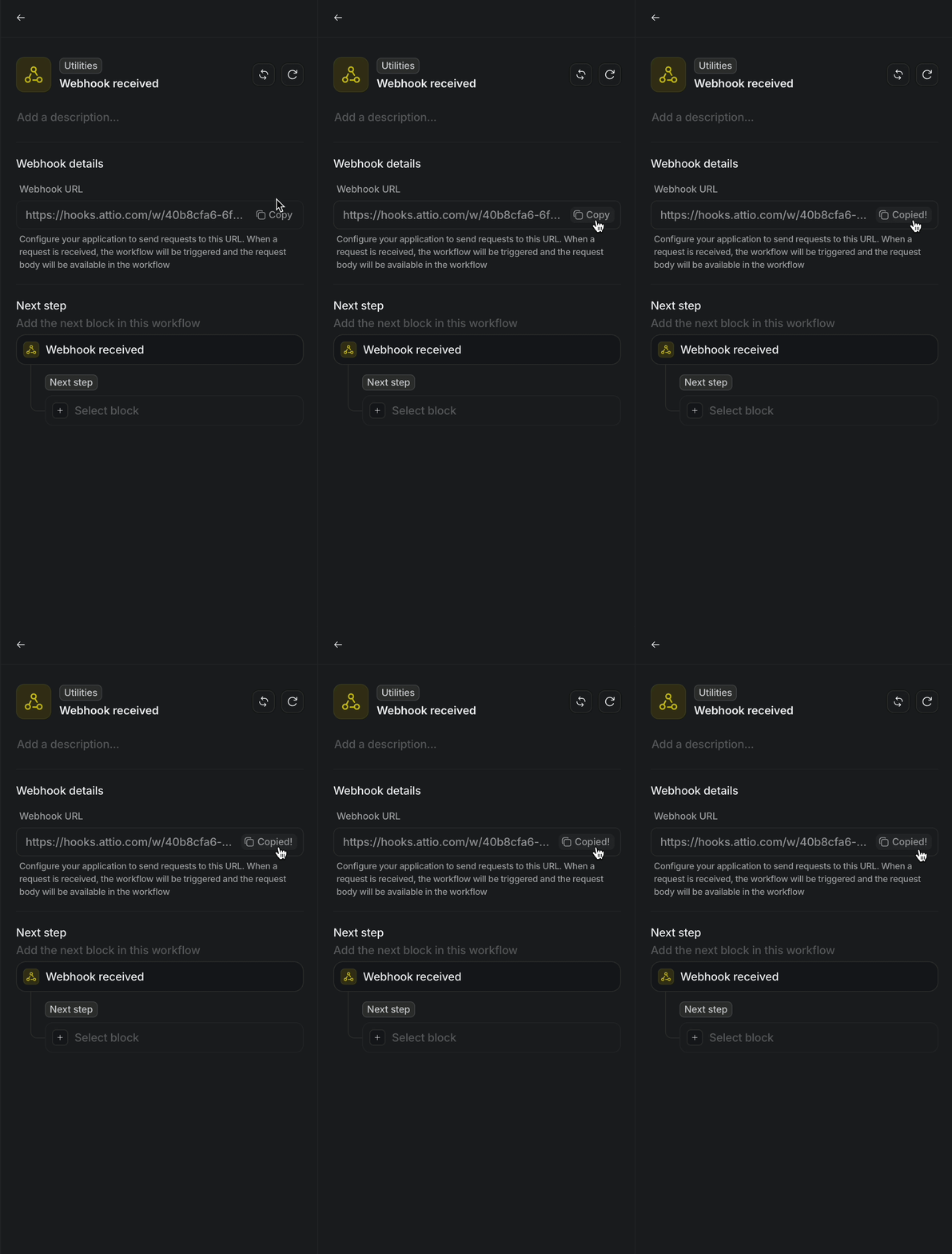
Attio will generate a Webhook URL for you. Click to copy this URL.
Now navigate to your Pipeline account and in the sidebar, click Settings.
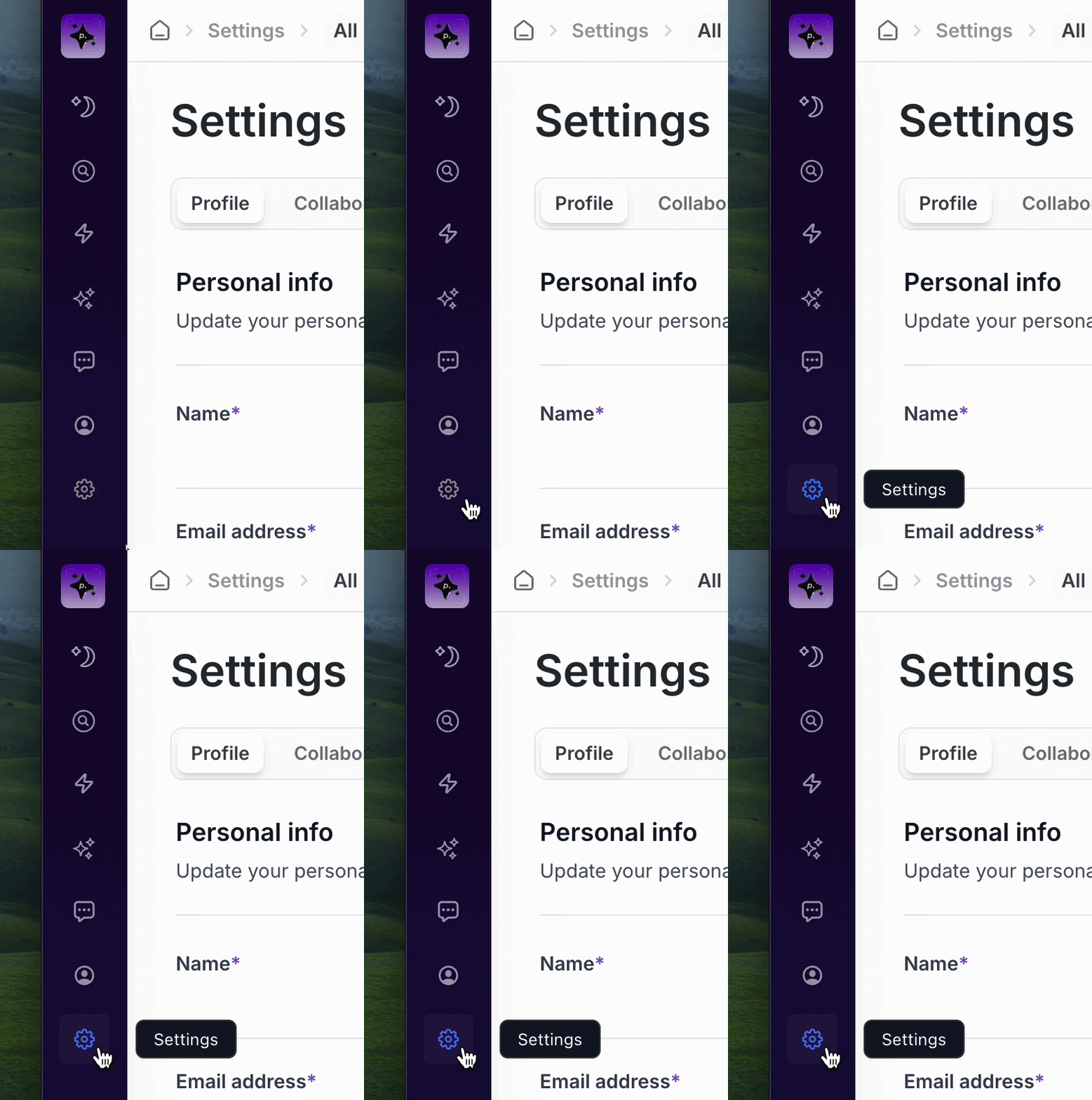
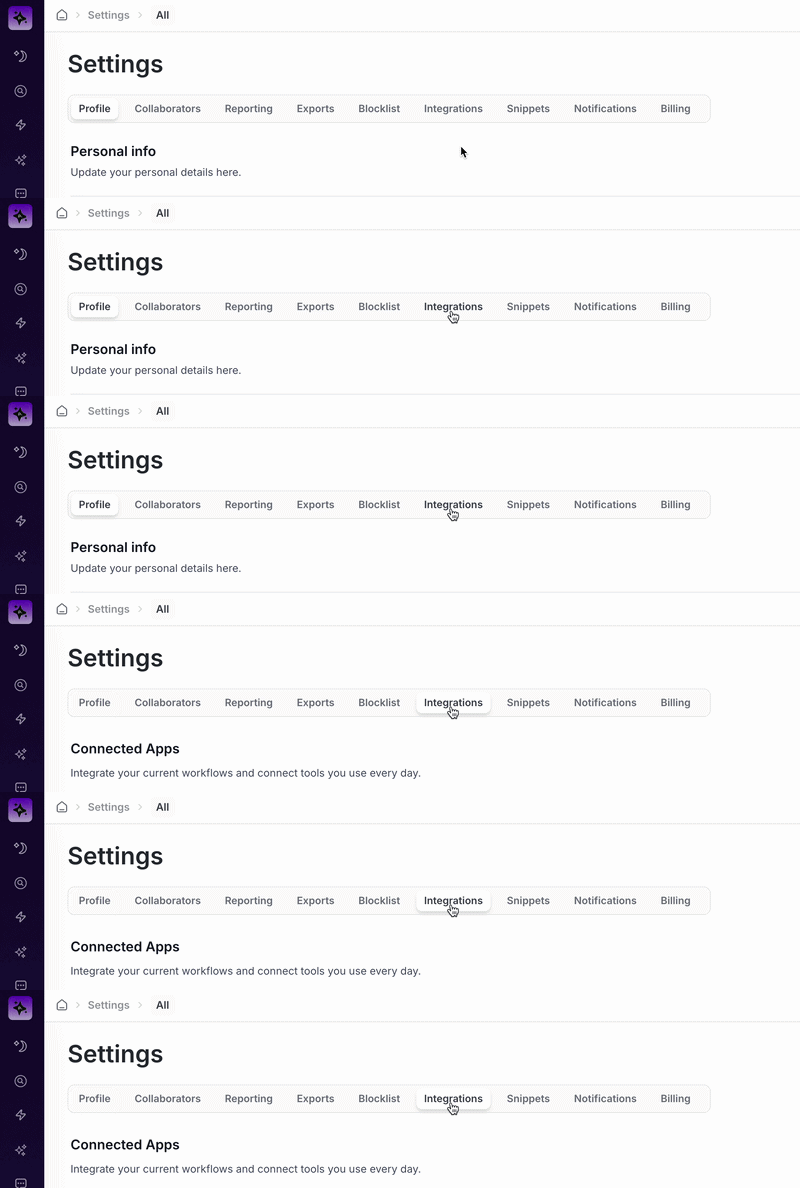
In your Pipeline Settings, click on the Integrations tab.
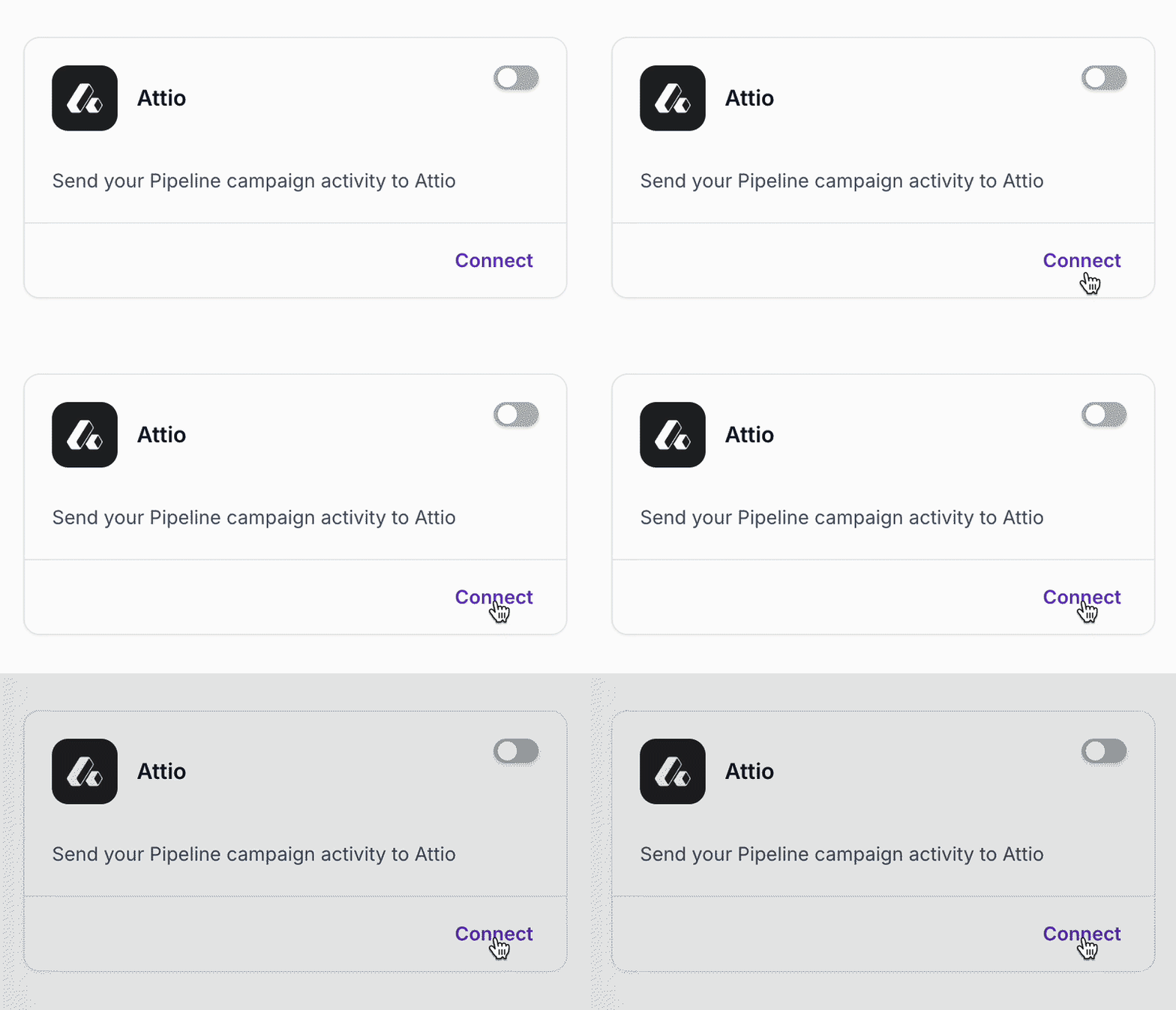
On the Attio integration tile in Pipeline, click Connect.
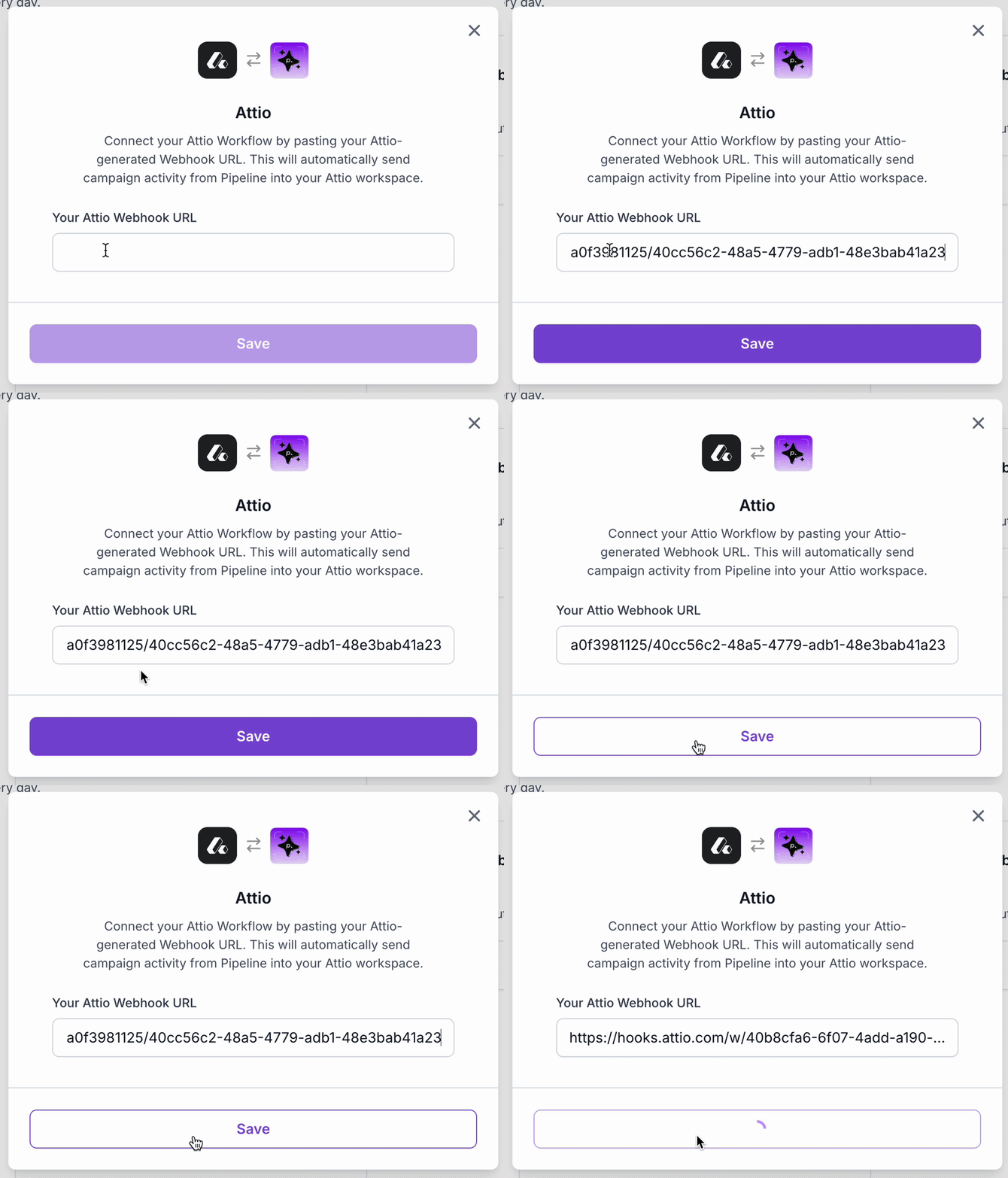
Paste your Attio Webhook URL that copied earlier (Step 5) into the input field and click Save.
🎉 Your Attio account is now connected to Pipeline!
⚙ Complete the Workflow in Attio
Pipeline will now begin sending campaign data and activity to Attio.
To finish setup, you’ll need to define what should happen when Attio receives that webhook data.
Inside Attio, you can configure your workflow to:
Create new records
Update existing contacts
Associate people with companies
Create a "Engagement" timeline to track your leads progress
This logic is fully customizable based on how your CRM is structured and how you want campaign activity handled.
If you need help setting up your custom Attio workflow, reach out to our support team and we’ll guide you through it!
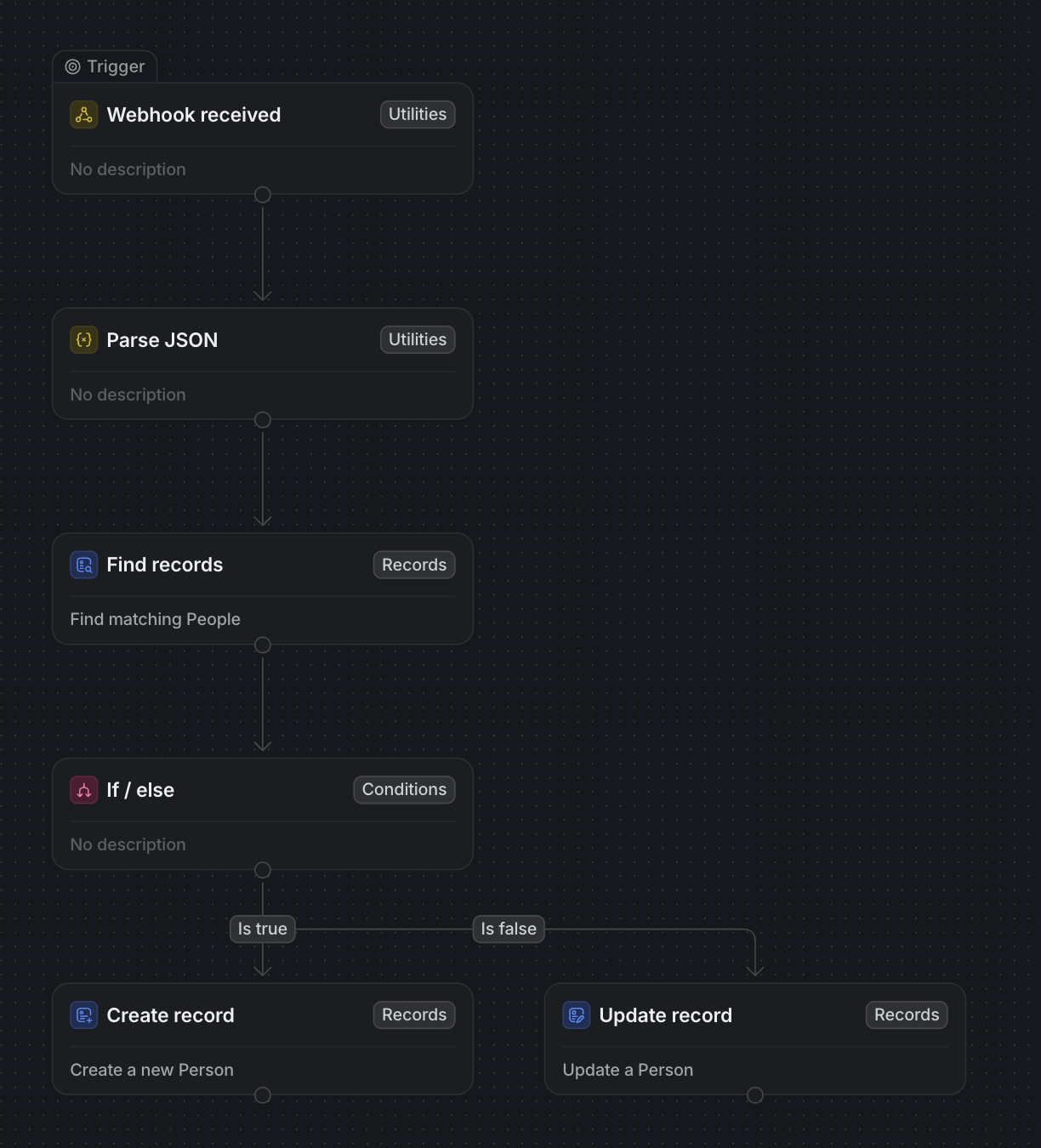
📃 Attio Workflow Example Template
⭐️ Here’s what it does →
When Attio receives lead data from Pipeline, this workflow looks up the Person using their LinkedIn URL.
If the Person exists → it updates their record with the latest campaign step and details.
If the Person does not exist → it creates a new Person with that information.
This keeps your Attio workspace in sync without creating duplicates.
Example JSON payload that Pipeline sends to Attio:
{
  "first_name": "Sarah",
  "last_name": "Mitchell",
  "email": "sarah@brightwavelabs.com",
  "linkedin_profile": "https://www.linkedin.com/in/sarah-mitchell",
  "profile_pic": "https://example.com/avatar.jpg",

  "job_title": "Head of Marketing",
  "company": "BrightWave Labs",

  "sequence_name": "Sent Connection Request",
  "message": "Hi Sarah, would love to connect."
}